Showing posts with label network. Show all posts

Friday, 23 August 2024

Deploy Nginx Ingress Conroller with Private IP (Limited Access to vNET) to AKS with Terraform, Helm and Azure DevOps Pipelines

We have dicussed "Create Azure CNI based AKS Cluster with Application Gateway Ingress Controller (AGIC) Using Terraform" and "Create Azure CNI based AKS Cluster with Application Gateway Ingress Controller (AGIC) Using Terraform" in previous posts. However, Nginx is a popular ingress controller for kubernetes. When using Nginx ingress controller with AKS  we can avoid the cost of an application gateway used for AGIC. In this post we are going to explore setting up Nginx ingress controller for AKS to expose applications running in AKS within the virtual network privately (without exposing them publicly), so , that only the other applications, or Azure services within the vNet can get access to the apps in AKS.

Expected outcome is to setup Nginx ingress controller in AKS with private IP frm AKS subnet as shown below.


Saturday, 6 July 2024

Conditional Whitelisting of IPs in Azure Key Vault with Terraform

Azure key vaults protected by vNet (vitual network) need to be added with local IP addreses, to allowed IP list,  if need to access secrets etc. in the key vault from the local machines (not considering VPN and private endpoints).  How to use dynamic list of IPs need to be whitelisted in the key vault, conditionally via terraform  IaC (infrastructure as code) is bit tricky to implement. In this post let's explore how to dynamically whitelist, set of IPs in Azure key vault using terraform, with an example.

Consider a situation, where few IPs need to be whitelisted in key vault always and few other IPs (let's say set of developer machine IPs), only in development environment.

Wednesday, 2 April 2014

07. Setup Development Workstation Base - Setup Virtual Environment for TFS 2013 - Using Virtualbox

In this step of Setup Virtual Environment for TFS 2013 - Using Virtualbox, we will setup a base machine hard disk for virtualbox so that we can use them to create development environments.

01. Setup the OS but DO NOT add to domain

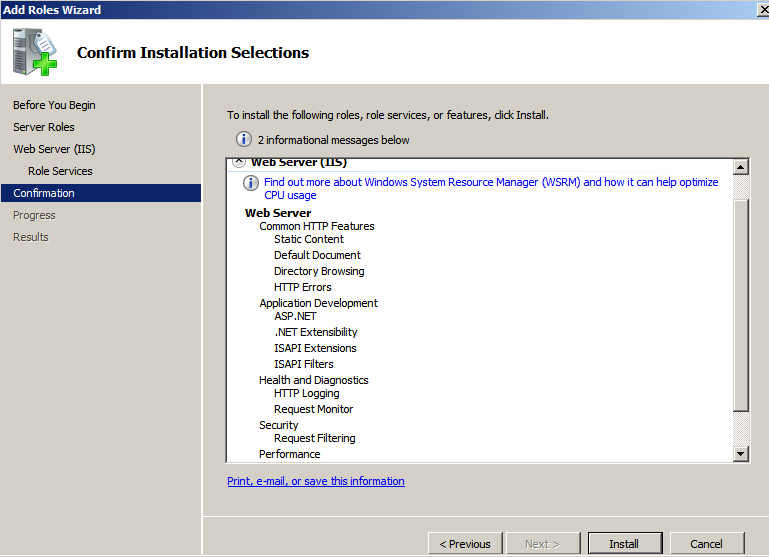
02. Setup IIS (This is not mandatory but I prefer to have IIS)


03. Run Visual Studio 2013 Setup. You need to install .Net framework for the setup to run.


04. Another requirement is IE 11


05. download from http://windows.microsoft.com/en-us/internet-explorer/ie-11-worldwide-languages


06. Now you will be able to run the setup and install VS 2013.


Install any other tools which you think might help in development. Two great tools are

Microsoft Visual Studio Team Foundation Server 2013 Power Tools
Productivity Power Tools 2013

The next step will be to create instance of the base machine and add it to the domain, which I am hoping to explain in few days.

Tuesday, 25 February 2014

06. Setup a Build Server - Setup Virtual Environment for TFS 2013 - Using Virtualbox


In this step of Setup Virtual Environment for TFS 2013 - Using Virtualbox, I will explain how to setup a build server for TFS.

01. First setup an account in PDC as TFS build service


02. Set up a new virtual machine in Oracle Virtual Box for TFS Build server. Set network to isolated internal network.


03. Change the machine name,, set IP and add to domain.


04. Select restart later and add TFA Admin account to local administrators group.


05. Restart the machine and login as TFS Admin.


06. Enable File and Printer sharing for the domain, to allow network access.


07. Run mmc and add Group Policy Object snap in to change local computer policies.


08. Add build service account for Log on as a service.


09. Install TFS.


10. Run build service configuration wizard.


11. Select the team project collection


12. If  any issues related to selecting TFS server go to IE options and add tfs root to trusted sites.


13. TFS server can be connected with added to trusted sites. Select the project collection for the build server.


14. Set the number of build agents depending on the number of CPU cores.


15. Set the build service account.


16. Review and configure.


17. Close the wizard and  start the build service, controller and agents.


Oops. Something is wrong. Service starts and stops suddenly. Done some search and really useful info here http://nakedalm.com/tfs-2012-issue-stuck-builds-in-team-foundation-build-with-no-build-number/

But the issue of multiple site bindings was not an issue for me here. So I did not proceed to set multipleSiteBindingsEnabled to true as specified in the above link.


18. After hour or two of search in www without any other valid solution just tried ping the TFS server from the build server. Since its shown resolving with IPv6 added below to hosts file.


19. It did the trick and Build Services are up and running for my TFS environment.


The next step is to install Visual Studio versions and any other required stuff in build server to support the developments solutions build, which I will not explain here.


Popular Posts