The post “Setup Windows 10 VM in Azure to Develop with Docker CE” has a detailed walkthrough on setting up Docker CE in Azure VM, which is using Windows 10. While trying out the same, encountered an issue to start the Docker giving error message “Failed to start the virtual machine 'MobyLinuxVM' because one of the Hyper-V components is not running. 'MobyLinuxVM' failed to start.” It is interesting to inspect and find a fix to this issue.
Showing posts with label virtual machine. Show all posts
Showing posts with label virtual machine. Show all posts
Friday, 16 November 2018

Monday, 20 March 2017
Sonar Server on Azure VM
SonraQube has become grate tool providing detail analysis of code quality. Tracing of history of code quality checks let the development teams identify how the code quality improved (could be how the code is gotten so bad even). How to setup a SonarQube server to use with team foundation server is described in the post “Setting Up Sonar Server for TFS”. Let’s look at steps required to set this up in an Azure virtual machine and expose it to use with team services account.
- Setup an Azure virtual machine with Windows Server 2012 R2 Datacenter.
- Follow the instructions in the post “Setting Up Sonar Server for TFS” and get the SonarQube server running inside the virtual machine.
- To allow accessing the Sonar server default port 9000 through firewall of the virtual machine add an inbound firewall rule in the virtual machine allowing port 9000 for public and private access.
- Above step alone will not allow public access to Azure VM hosted sonar server. You need to allow accessibility in Azure nsg(network security group) for the port. To do this go to the virtual machine in Azure portal, select Network Interfaces and click on the network interface.
Thursday, 9 April 2015
TFS on Azure – 06. Enable Internet Access for Azure VM
To setup TFS environment on azure using a domain controller as a VM in Azure it is required to setup a virtual network and DNS. When this is done and virtual machines configured to use virtual network, internet access does not work inside the VM.

To enable internet access following steps should be performed.
Currently only one DNS is setup with AD machine.

Go to the virtual network configuration in Azure management portal and add following DNS entries.
168.63.129.16
168.62.167.9
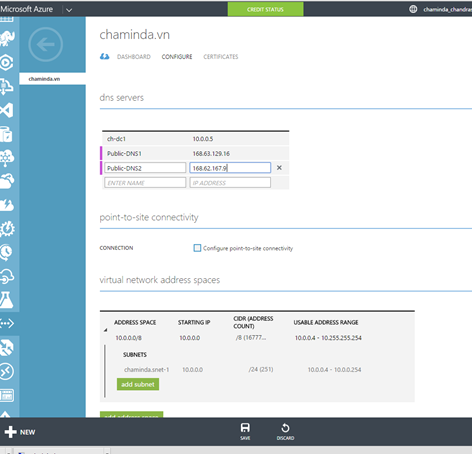
Click save and select yes in below message.


This will enable internet access inside the virtual machines in azure connected to the virtual network.


To enable internet access following steps should be performed.
Currently only one DNS is setup with AD machine.

Go to the virtual network configuration in Azure management portal and add following DNS entries.
168.63.129.16
168.62.167.9

Click save and select yes in below message.


This will enable internet access inside the virtual machines in azure connected to the virtual network.

Saturday, 7 March 2015
TFS on Azure – 02. Create an Azure VM for AD
To setup TFS in Azure, AD can be setup as Azure VM. It is possible to use corporate AD with Azure, and use it to setup TFS in Azure VM. To setup AD in Azure VM it is required to setup a virtual network in Azure.
The steps to setup a VM to create an AD as an Azure VM are described below.
Setting up VM
Select a Windows Server 2012 R2 Datacenter image for a VM.


Specify name for VM and User Name and Password. Standard A1 machine would be sufficient.

Provide a cloud service dns name.

Select the Virtual Network created previously.

Provide availability set name.


Select to Install VM Agent.

VM is created.


Availability Set
Following links provide detailed information on Azure Availability Set.
http://azure.microsoft.com/en-us/documentation/articles/virtual-machines-manage-availability/
http://azure.microsoft.com/en-us/documentation/articles/virtual-machines-how-to-configure-availability/
Since this is a demo environment there is no need to setup high availability. Remove the availability set from VM configuration can be done like shown below.
Select Remove from availability set and save. VM will be restarted.


Log in to VM
Click on Connect to download the rdp file to access VM.


Open rdp file and provide user name and password specified to create the VM to login.


The steps to setup a VM to create an AD as an Azure VM are described below.
Setting up VM
Select a Windows Server 2012 R2 Datacenter image for a VM.


Specify name for VM and User Name and Password. Standard A1 machine would be sufficient.

Provide a cloud service dns name.

Select the Virtual Network created previously.

Provide availability set name.


Select to Install VM Agent.

VM is created.


Availability Set
Following links provide detailed information on Azure Availability Set.
http://azure.microsoft.com/en-us/documentation/articles/virtual-machines-manage-availability/
http://azure.microsoft.com/en-us/documentation/articles/virtual-machines-how-to-configure-availability/
Since this is a demo environment there is no need to setup high availability. Remove the availability set from VM configuration can be done like shown below.
Select Remove from availability set and save. VM will be restarted.


Log in to VM
Click on Connect to download the rdp file to access VM.


Open rdp file and provide user name and password specified to create the VM to login.


Subscribe to:
Posts (Atom)
Popular Posts
-
 The hosts file in /etc/hosts is allowing the WSL distros to map IP addresses to domain names before going to domain name servers, similar...
 -
 Can a Coded UI test executed with a Console Application? Yes it is possible. I am going to explain how it can be done. I am going to exec...
 -
Pull Request are the controlled way to bring in the changes to your stable branches in your Azure Git repos, or for that matter all Git prov...
-
The new Azure Managed Redis can be deployed with balanced compute and memory with high availability, and useful modules such as RedisJson a...
-
We have discueed, that we have to use an environment variable to handle input parameter default values, if we are using trigger for workflo...


