Showing posts with label Team Foundation Server 2012. Show all posts

Wednesday, 7 August 2013

TFS 2012 - Voluntary Feedback with Feedback Client

Providing feedback (response) for the feedback requests is the most commonly known way of using TFS 2012 Feedback Client. I will explain another use of feedback client which gives option to provide feedback without a feedback request. This will be really useful if you want suggestions from Client, QA members or even from Developers, not to be logged as Bug work Items. You have option to provide them as voluntary feedback response and later analyze and act upon them.

If you need more fields to capture additional data to record suggestions, of course you can customize the Feedback Response work item type.

Lets see how we can use TFS Feedback Response as voluntary feedback.

Once you download (http://www.microsoft.com/en-us/download/details.aspx?id=30660) and install TFS 2012 Feedback Client you can launch it as shown in below image.


 Select the Team Project


You can see the feedback client launched


Provide the Title and any comments for the feedback. You can capture the desktop activities including voice, screenshots or other attachments.


Once the feedback is submitted you can view it in Web Access or Visual Studio.


You can download and view added screenshots.

Play the video file.


You can see more information on the below blog posts, they are really useful information.

http://blogs.msdn.com/b/slange/archive/2012/08/02/vs-2012-alm-tidbits-the-feedback-client-s-two-modes.aspx

http://blogs.msdn.com/b/slange/archive/2012/08/03/vs-tfs-2012-tidbits-when-to-use-the-feedback-client.aspx


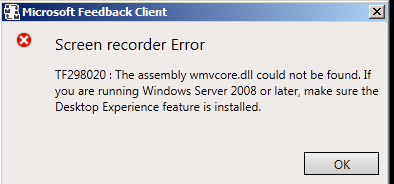
You may come across below error when try to capture screen on windows 2008 or 2012 server.


Follow the below steps to fix the issue.

1. Open Server Manager


2. Add Features and select Desktop Experience and other required components


3. Install the feature


4. Restart and you are good to go


Sunday, 28 July 2013

TFS 2012 - Scheduling Backups

It is very easy to create scheduled backups for TFS 2012, when you have TFS power tools installed (http://visualstudiogallery.msdn.microsoft.com/b1ef7eb2-e084-4cb8-9bc7-06c3bad9148f). Following is a step by step guide on, how to create a scheduled backup for TFS 2012.


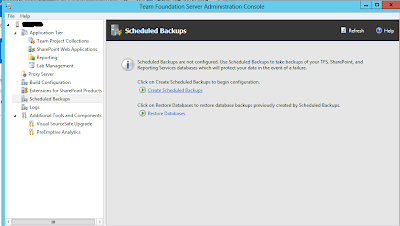
1.  Open the TFS Admin Console -- > Scheduled Backups


2.  Provide a network location to backup files. Set the retention period for backups. Retention period specifies the number of days to keep the backups, before deleting the older backups to free disk space, for new backups


3. Select the TFS report server databases


4. It is important to create or use the existing encryption key.  this will be mandatory to restore reporting services.


5. Select the SharePoint databases 


6.  In this step you can setup email alerts for backup job failure & success.


7. Schedule the backups, how to set custom schedule example below.


8. Review the settings


9. Verify settings


10. Configure 


11. Great now all is set, and the schedule backup will run on the defined schedule.


12. You can even trigger backup manually to verify. By clicking on Take Full Backup Now.


 13. The backup files are copied to the network location.


It is recommended to copy these files to a may be tape drive occasionally to keep a backup of the backup.


Thursday, 11 July 2013

MSF Agile - Bug WIT - Adding to Backlog with State New

We do not get Bug work item in Backlog for MSF Agile process template. But it is a good idea to have it on the backlog, since the team then will know there are more work to be done. With VS Scrum template we have this as default option.

If we only add the Bug work item to the Backlog, again it becomes a bit of a issue. Why? Because in MSF agile template the initial State of Bug work item is Active. So there will be lot of Active bugs in the board and unassigned..looks bad..isn't it?
What if we introduce a new State to Bug, as "New", and make the Bug to have New, Active, Resolve, Close (4 States) rather than having Active, Resolve, Close (3 States).

OK, lets do it step by step for a team project and see how it goes.

1. First we have to have TFS power tools for VS 2012 update 2 installed to get the customizations done. http://visualstudiogallery.msdn.microsoft.com/b1ef7eb2-e084-4cb8-9bc7-06c3bad9148f

2. Export Bug Work item as below.


2. Open Bug work item template.


3. Choose file saved in step 1


4. In power tools process template editor you can do the modification to add new state for the Bug work item workflow easily using the GUI.


a) Bug work item state transition  - MSF Agile default


b) Add new State "New"
c) Easy to modify in GUI


d) But easier to open the Bug.xml file in notepad and edit as per below.

  •      Add new State "New"


  • Remove "" to Active Transition and add the Transitions as below


e) When above changes done, save it as BugModified.xml. Open it in Process template editor, and you should see the new state transition workflow like this.


 f) Now import the  BugModified.xml to the team project using power tools. (Process Editor --> Work Item Types -- > Import WIT)

h) Make sure to add verify fields "Story Points" (Size of Bug - Similar to User Story Size) and "Stack Rank" (to prioritize the backlog items) available in the bug WIT. If not available add them.


 5. Now the Bug work item has new State "New"


6. Now we have to do some modifications to categories, and common config to get the Bug into backlog and to meke sure drag and drops work in Board.

7. Open command prompt in TFS server and  change directory (to use witadmin) using

cd C:\Program Files (x86)\Microsoft Visual Studio 11.0\Common7\IDE

8. Execute below command with correct collection and team project name

witadmin exportcategories /collection:http://localhost:8080/tfs/defaultcollection /p:Demo.MSFAgileModified /f:"C:\temp\Categories.xml"

9. Open Categories.xml notepad and add the text in green box in the Requirement Category and save the as CategoriesModified.xml


 10. Execute below command to get CommonProcessConfig.xml

witadmin exportcommonprocessconfig /collection:http://localhost:8080/tfs/defaultcollection /p:Demo.MSFAgileModified /f:"C:\temp\CommonProcessConfig.xml"

Change as below (add green box text to bug category) and save the file as CommonProcessConfigModified.xml
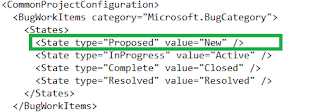


11. Now import the two modified xmls using below two commands


witadmin importcategories /collection:http://localhost:8080/tfs/defaultcollection /p:Demo.MSFAgileModified /f:"C:\temp\CategoriesModified.xml"

witadmin importcommonprocessconfig /collection:http://localhost:8080/tfs/defaultcollection /p:Demo.MSFAgileModified /f:"C:\temp\CommonProcessConfigModified.xml"

12. Check the backlog and all now the bugs appear in the backlog


13. When click on board .. err.. :(


14. Before our imports Column Options in the Board looked like


 15. But now


 16. The fix


 17. Great.. the Board is back in operation


18. State transition with drag drop works fine...


If this was done on TFS 2013 preview... Bug would have a different color theme as well..


Popular Posts