To create automated daily backups of Azure storage account blobs we can use Azure Backup Vault resource. It is possible to configure operational backups and vaulted backups for Azure storage blobs with the backup vault backup policies and instances. We need to consider the limitations specified for operational backups and the limitations in vaulted backups, specially the limitation of only 100 blob containers are allowed to be backed up for a given Azure storage account. Another issue with vaulted backups is the newly created containers in an Azure storage will not automatically included in the backups. Therefore, the Azure vaulted backups are working well only when you have predefoined set of blob containers in your implementation, that are configured for vaulted backups.
Tuesday, 24 June 2025

Friday, 29 September 2017
TFS DB Restore–DB Set to Suspect
When you have configured backups with TFS admin console and restore them in case of a need, you are expecting, your TFS databases to restore without any issues. But you might run into this situation if you just, missed simple thing to check. For example the target server SQL version, should exactly match to the source or your production TFS, SQL version. Let’s have a look at learning experience I went through due to a slight mistake, which taught me how much vigilant you need to be when you are doing the, administrative work with TFS.
Monday, 21 August 2017
Cloning Your TFS Server Part 01 – Backing Up and Restoring Databases
You might want to clone your TFS instance if you are doing a hardware move upgrade. There can be other situations such as you need to move one of your projects to VSTS (Team Services) using high fidelity database import, without migrating other projects in the same collection. If you prefer to keep your current TFS untouched while trying to create an isolated collection for a single project, you might want to clone and create an instance of your TFS. There can be several other experimental reasons you may have to clone a TFS instance.
Monday, 22 December 2014
TFS Backup/Restore – Lessons Learnt

Lesson 1
I have done a trial upgrade before today’s live upgrade and used TFS admin console backup schedule to take a manual scheduled full backup of TFS. This was a hardware migration upgrade and worked fine for the trial. Today when I started actual upgrade I took the TFS offline by executing “TFSServiceControl quiesce” and “net Stop WAS” commands. After that as in trial I started the scheduled backup manually from TFS admin console.
After about 30 minutes nothing happened. No backups were created in the path specified. This is when me and my colleagues realized this could be because we have taken the TFS services offline (it was necessary to take it offline to make sure no team members from three global offices access the current TFS while upgrade going on, so we can assure no data new TFS production).
We started TFS services again using “TFSServiceControl unquiesce” and “net start WAS” followed by a “iisreset”. Suddenly backups started getting created. So it is confirmed TFS services specially Job Agent Service should be running to get backups via admin console scheduled backups. Since we wanted to take TFS offline we did take it offline again, and took manual DB backups. Including backing up Reporting Services key as well. List of items we backed up is below for reference. ( Bad thing was we lost about one hour of the planned schedule)
Tfs_configuration
All Collection DBs
Tfs_Analysis DB
Tfs_Warehouse DB
ReportServer DB
ReportServerTemp DB
Reporting Services key
Lesson 2
The second one was a bit of unfortunate situation. While we were taking down build servers etc we have seen a notification of windows update. We did not consider it would affect our work since we had seen nothing in the intermediate machine we have used to do the upgrade. We took backups of all TFS DBs and started restoring them in a intermediate server to run the upgrade before moving database to new production hardware. One collection DB out of six collection DBs having size of 182 GB was the largest. While we were restoring it in the SQL 2008 R2 SP1 (Simulating current production TFS environment) took around two hours to reach 80% restore completion and suddenly crashed. The error message was SQL services not found. When checked found SQL Server is down. Reason was a windows update has shut down the service of SQL while restore operation is going on. Disabled windows updates, and restarted restore DBs.This cost us 2 additional hours.
Sunday, 28 July 2013
TFS 2012 - Scheduling Backups
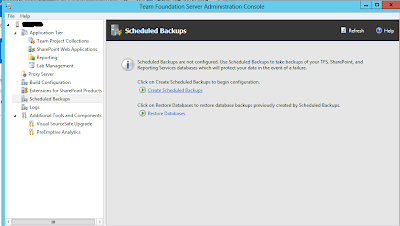


It is recommended to copy these files to a may be tape drive occasionally to keep a backup of the backup.
Popular Posts
-
As we discusssed in " Setup Redis Cluster with JSON and Search Modules on AKS with Binami Redis Using Custom Image " the cluster...
-
 Let’s look at how we can specify the artifact version to download based on the resource CI build linked to the CD pipeline and check on how ...
 -
 The hosts file in /etc/hosts is allowing the WSL distros to map IP addresses to domain names before going to domain name servers, similar...
 -
 Can a Coded UI test executed with a Console Application? Yes it is possible. I am going to explain how it can be done. I am going to exec...
 -
Pull Request are the controlled way to bring in the changes to your stable branches in your Azure Git repos, or for that matter all Git prov...


