While using .NET Core 2.0 you may run into errors which may not be clear. “The SDK 'Microsoft.NET.Sdk.Web' specified could not be found.” is one such error which appears, when trying to load .NET Core 2.0 Web projects, and Let’s understand the reason behind this error to get it resolved.
Showing posts with label VS 2015. Show all posts
Showing posts with label VS 2015. Show all posts
Thursday, 8 February 2018

Wednesday, 22 February 2017
Resolve MSB4019: The imported project "C:\Program Files\dotnet\sdk\1.0.0-rc4-004771\Microsoft\VisualStudio\v14.0\DotNet\Microsoft.DotNet.Props" was not found or Unable to start the process. No executable found matching command "dotnet-projectmodel-server"
You might encounter compilation error in Visual Studio 2015 when a new .NET Core 1 web app is created, if you have installed Visual Studio 2017 (RC as of now). When a new .NET Core 1 web application is created/opened in Visual Studio 2015, with the project template you get with .NET Core 1.0.1 tools Preview 2, while having ".NET Core cross-platform development" for Visual Studio 2017 in your machine, you might see below error prompted.
---------------------------
Microsoft Visual Studio
---------------------------
The following error occurred attempting to run the project model server process (1.0.0-rc4-004771).
Unable to start the process. No executable found matching command "dotnet-projectmodel-server"
The project model server process provides intellisense, build, and reference information to Visual Studio and without it your experience will be very limited. Please try closing and reopening Visual Studio to see if that corrects the problem. Alternatively, check that the .NET Core SDK is properly installed.
---------------------------
OK
---------------------------
When attempt to compile the solution you may encounter a compilation error below.
WebApp.xproj(7,3): error MSB4019: The imported project "C:\Program Files\dotnet\sdk\1.0.0-rc4-004771\Microsoft\VisualStudio\v14.0\DotNet\Microsoft.DotNet.Props" was not found. Confirm that the path in the <Import> declaration is correct, and that the file exists on disk.
---------------------------
Microsoft Visual Studio
---------------------------
The following error occurred attempting to run the project model server process (1.0.0-rc4-004771).
Unable to start the process. No executable found matching command "dotnet-projectmodel-server"
The project model server process provides intellisense, build, and reference information to Visual Studio and without it your experience will be very limited. Please try closing and reopening Visual Studio to see if that corrects the problem. Alternatively, check that the .NET Core SDK is properly installed.
---------------------------
OK
---------------------------
When attempt to compile the solution you may encounter a compilation error below.
WebApp.xproj(7,3): error MSB4019: The imported project "C:\Program Files\dotnet\sdk\1.0.0-rc4-004771\Microsoft\VisualStudio\v14.0\DotNet\Microsoft.DotNet.Props" was not found. Confirm that the path in the <Import> declaration is correct, and that the file exists on disk.
Tuesday, 19 April 2016
Bower with VS 2015–Resolve ECMDERR Failed to execute "git clone https://github.com/components/ … exit code of #-532462766
Recently encountered error in getting bower packages with VS 2015 Update 1 (Enterprise), which is confirmed error on VS 2015 Update 2 Community as well, according to MSDN forum thread here.
PATH=.\node_modules\.bin;C:\Program Files (x86)\Microsoft Visual Studio 14.0\Common7\IDE\Extensions\Microsoft\Web Tools\External;%PATH%;C:\Program Files (x86)\Microsoft Visual Studio 14.0\Common7\IDE\Extensions\Microsoft\Web Tools\External\git
"C:\Program Files (x86)\Microsoft Visual Studio 14.0\Common7\IDE\Extensions\Microsoft\Web Tools\External\Bower.cmd" install --force-latest
bower jqueri-ui#* not-cached https://github.com/components/jqueryui.git#*
bower jqueri-ui#* resolve https://github.com/components/jqueryui.git#*
bower jqueri-ui#* checkout 1.11.4
bower jqueri-ui#* ECMDERR Failed to execute "git clone https://github.com/components/jqueryui.git -b 1.11.4 --progress . --depth 1", exit code of #-532462766

It does not load the version number of the package properly in bower.json as well.
It is same issue in corporate network and in no firewall, no proxy direct internet connection.
Search on the error and trying out so many suggestions, the most stable workaround is mentioned in this connect feedback (workaround link given stackoverflow answer).
Solution Step By Step
1. Download Git from http://git-scm.com/
2. Install in your machine.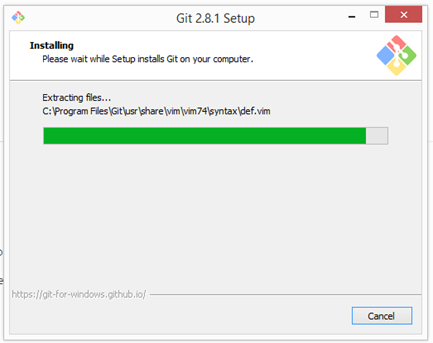

3. Open Git Bash
4. Run below command with Git Bash
git config --global url."http://".insteadOf git://
5. In Visual Studio right click on Dependencies – > Bower and click External tools
or click Tools, Options in Visual Studio.
6. Go to Project and Solutions –> External Web Tools in Options dialog.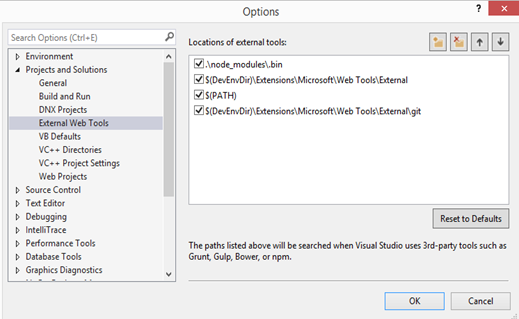
7. Uncheck “$(DevEnvDir)\Extensions\Microsoft\Web Tools\External\git” and add a new folder path to your Git installed location bin folder.
8. Close and open Visual Studio and you are good to go.
Now packages give version number in bower.json
Restore package completes smoothly.

One caveat with the solution is having to install external Git in the machine, which will not be used for anything other than fixing this issue. MSFT should fix the problem with embedded Git shipped with VS to make this a seamless experience for the developers.
PATH=.\node_modules\.bin;C:\Program Files (x86)\Microsoft Visual Studio 14.0\Common7\IDE\Extensions\Microsoft\Web Tools\External;%PATH%;C:\Program Files (x86)\Microsoft Visual Studio 14.0\Common7\IDE\Extensions\Microsoft\Web Tools\External\git
"C:\Program Files (x86)\Microsoft Visual Studio 14.0\Common7\IDE\Extensions\Microsoft\Web Tools\External\Bower.cmd" install --force-latest
bower jqueri-ui#* not-cached https://github.com/components/jqueryui.git#*
bower jqueri-ui#* resolve https://github.com/components/jqueryui.git#*
bower jqueri-ui#* checkout 1.11.4
bower jqueri-ui#* ECMDERR Failed to execute "git clone https://github.com/components/jqueryui.git -b 1.11.4 --progress . --depth 1", exit code of #-532462766

It does not load the version number of the package properly in bower.json as well.

It is same issue in corporate network and in no firewall, no proxy direct internet connection.
Search on the error and trying out so many suggestions, the most stable workaround is mentioned in this connect feedback (workaround link given stackoverflow answer).
Solution Step By Step
1. Download Git from http://git-scm.com/
2. Install in your machine.


3. Open Git Bash

4. Run below command with Git Bash
git config --global url."http://".insteadOf git://

5. In Visual Studio right click on Dependencies – > Bower and click External tools

or click Tools, Options in Visual Studio.

6. Go to Project and Solutions –> External Web Tools in Options dialog.

7. Uncheck “$(DevEnvDir)\Extensions\Microsoft\Web Tools\External\git” and add a new folder path to your Git installed location bin folder.

8. Close and open Visual Studio and you are good to go.
Now packages give version number in bower.json

Restore package completes smoothly.


One caveat with the solution is having to install external Git in the machine, which will not be used for anything other than fixing this issue. MSFT should fix the problem with embedded Git shipped with VS to make this a seamless experience for the developers.
Friday, 25 March 2016
Build C# 6 Syntax with TFS 2013.4 Build Services
If you are using VS 2015 with C# 6 syntax and try to build it with, TFS 2013.4 (build agent installed with VS 2015 Update1 enterprise) you might run into issues like shown below.
The name 'nameof' does not exist in the current context
This error occurs, since TFS 2013.4 build template is using, msbuild 12.0. To let the TFS build to use msbuild 14.0, you can provide msbuild argument /ToolsVersion switch (or /tv, for short), in TfvcTemplate.12.xaml build process template.
/tv:14.0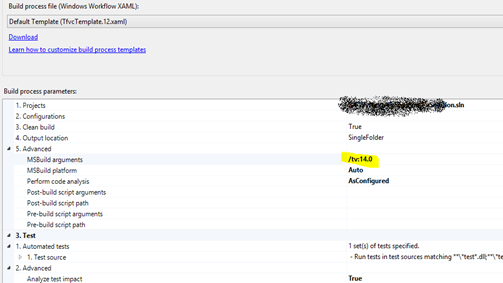
With this the previous error solved but now it runs into below issue.
TF900547: The directory containing the assemblies for the Visual Studio Test Runner is not valid ''
To solve this install VS 2013 in build agent. It solves the problem.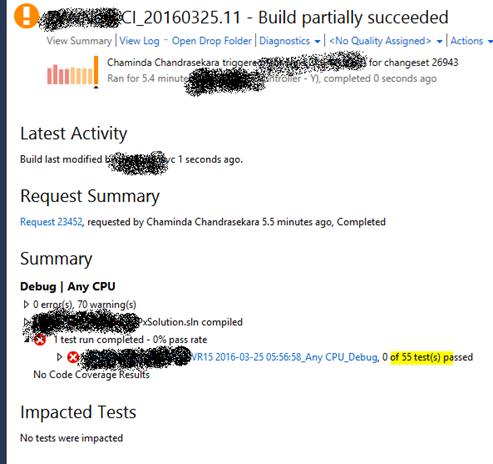
Tests in here fail, but that is nothing to do with build. Tests are not properly written.
You might run into below issue as well.
Unhandled Exception: System.TypeInitializationException: The type initializer for 'LibGit2Sharp.Core.NativeMethods' threw an exception. ---> System.BadImageFormatException: An attempt was made to load a program with an incorrect format. (Exception from HRESULT: 0x8007000B)
at LibGit2Sharp.Core.NativeMethods.git_libgit2_init()
at LibGit2Sharp.Core.NativeMethods.LibraryLifetimeObject..ctor()
at LibGit2Sharp.Core.NativeMethods..cctor()
--- End of inner exception stack trace ---
at LibGit2Sharp.Core.NativeMethods.RemoveHandle()
at LibGit2Sharp.Core.NativeMethods.LibraryLifetimeObject.Finalize()
This is discussed in below links and you can solve using different techniques described in them.
https://social.msdn.microsoft.com/Forums/en-US/5a0d1950-1367-41a6-9171-676a0d0e93c1/tfs-online-getted-checkin-build-failures-vs-online-tfs-online-team-need-to-look-into-it?forum=TFService
http://stackoverflow.com/questions/29286052/tfs-2013-throws-lib2gitsharp-error-during-build-deploy-intermittent
The name 'nameof' does not exist in the current context

This error occurs, since TFS 2013.4 build template is using, msbuild 12.0. To let the TFS build to use msbuild 14.0, you can provide msbuild argument /ToolsVersion switch (or /tv, for short), in TfvcTemplate.12.xaml build process template.
/tv:14.0

With this the previous error solved but now it runs into below issue.
TF900547: The directory containing the assemblies for the Visual Studio Test Runner is not valid ''

To solve this install VS 2013 in build agent. It solves the problem.

Tests in here fail, but that is nothing to do with build. Tests are not properly written.
You might run into below issue as well.
Unhandled Exception: System.TypeInitializationException: The type initializer for 'LibGit2Sharp.Core.NativeMethods' threw an exception. ---> System.BadImageFormatException: An attempt was made to load a program with an incorrect format. (Exception from HRESULT: 0x8007000B)
at LibGit2Sharp.Core.NativeMethods.git_libgit2_init()
at LibGit2Sharp.Core.NativeMethods.LibraryLifetimeObject..ctor()
at LibGit2Sharp.Core.NativeMethods..cctor()
--- End of inner exception stack trace ---
at LibGit2Sharp.Core.NativeMethods.RemoveHandle()
at LibGit2Sharp.Core.NativeMethods.LibraryLifetimeObject.Finalize()

This is discussed in below links and you can solve using different techniques described in them.
https://social.msdn.microsoft.com/Forums/en-US/5a0d1950-1367-41a6-9171-676a0d0e93c1/tfs-online-getted-checkin-build-failures-vs-online-tfs-online-team-need-to-look-into-it?forum=TFService
http://stackoverflow.com/questions/29286052/tfs-2013-throws-lib2gitsharp-error-during-build-deploy-intermittent
Monday, 29 February 2016
Unit Test for ASP.Net 5 with xUnit
Unit testing plays a significant role in assuring the quality of the applications we develop. To unit test an ASP.Net 5 RC1 Update1 (ASP.Net Core 1.0 now), web application we can use xUnit.
To add xUnit test to the solution add a Class Library (Package) project.

Edit the default project.json shown below.
Add dependency to the ASP.Net 5 web project, and to xUnit and xUnit.Runner.Final project.json should be similar to below.
Once the project.json saved the references get updated.
Let’s write a test for a very simple controller method.
Test method as a Fact (There are two types of Unit Tests in xUnit. Fact and Theory. More information here).
Go to test explorer in VS to view the test.

If you cannot see test as above build your solution. Test will be then available in the explorer. Execute and you can see the results.
Next post let’s learn how to run the unit tests (xUnit), with VS Team Service build and publish test results.
To add xUnit test to the solution add a Class Library (Package) project.


Edit the default project.json shown below.

Add dependency to the ASP.Net 5 web project, and to xUnit and xUnit.Runner.Final project.json should be similar to below.

{
  "version": "1.0.0-*",
  "description": "BookMyEvents.UnitTests Class Library",
  "authors": [ "Chaminda" ],
  "tags": [ "" ],
  "projectUrl": "",
  "licenseUrl": "",

  "dependencies": {
    "BookMyEvents": "1.0.0-*",
    "xunit": "2.1.0",
    "xunit.runner.dnx": "2.1.0-rc1-build204"
  },

  "commands": {
    "test": "xunit.runner.dnx"
  },

  "frameworks": {
    "dnx451": { },
    "dnxcore50": {}
  }
}

Let’s write a test for a very simple controller method.

Test method as a Fact (There are two types of Unit Tests in xUnit. Fact and Theory. More information here).

Go to test explorer in VS to view the test.


If you cannot see test as above build your solution. Test will be then available in the explorer. Execute and you can see the results.

Next post let’s learn how to run the unit tests (xUnit), with VS Team Service build and publish test results.
Subscribe to:
Posts (Atom)
Popular Posts
-
 Let’s look at how we can specify the artifact version to download based on the resource CI build linked to the CD pipeline and check on how ...
 -
 The hosts file in /etc/hosts is allowing the WSL distros to map IP addresses to domain names before going to domain name servers, similar...
 -
 Can a Coded UI test executed with a Console Application? Yes it is possible. I am going to explain how it can be done. I am going to exec...
 -
Pull Request are the controlled way to bring in the changes to your stable branches in your Azure Git repos, or for that matter all Git prov...
-
The new Azure Managed Redis can be deployed with balanced compute and memory with high availability, and useful modules such as RedisJson a...

