Showing posts with label 2015. Show all posts

Saturday, 6 August 2016

Download Artifacts–VSTS/TFS Extension Updated–Issue Fix and Enhancements

The VSTS/TFS Release extension Download Artifacts, had an issue of failing if there is spaces in the build definition name or build drop UNC paths. This issue has been fixed with the latest version 1.1.15.
Updating from version 1.0.18 to 1.1.15 requires to edit the release definition and save it to, fix parameter not found issues, for removed input parameters.
Issue
https://github.com/chamindac/vsts.release.task.download-artifacts/issues/1
image
Fixedimage

Enhancements
Provided facility to download sub folders or files, without downloading the entire artifact folder. Source build information is now automatically picked. No Need to provide additional parameters for it.
Artifact Names/Paths to Download separated by ;. Example *(default) as artifact names allow all artifacts download. Multiple artifacts can be specified with pattern Drop1;Drop2. Artifact name with sub path allows to download sub item of a given artifact. Multiple can be specified with pattern Drop1\MyWebProj;Drop1\ReleaseNote.html;Drop2;Drop3\MyWebProj2 . Wild cards in paths are NOT SUPPORTED. * value as default supported to specify all artifacts.DownloadArtifacts-01
DownloadArtifacts-02

Saturday, 16 July 2016

VSTS Release Task – Download Artifacts – Filter for Given Artifact Name(s)

This extension “Chamindac.vsts.release.task.download-artifacts” for VSTS and TFS 2015.2.1 upwards, can be used to filter for build artifacts by name, and download only required artifact(s), to the release agent machine. The requirement for this extension is explained in post “Multiple Build Artifacts–TFS 2015/VSTS Builds”. Source code for this extension is available in Github.

Extension “Chamindac.vsts.release.task.download-artifacts” can be downloaded/installed from VSTS Marketplace. To install to VS Team Services click on install, or download for on-premise TFS 2015 (TFS 2015.2.1 upwards supported).image

Once installed, in release definition tasks a new task will be available under Utilities.image

Always add this task as first task of the release environment and make sure the environment is set to skip artifact download.image

image

The tasks comes with default filled values to behave as normal Download artifacts.image

Build artifact names should be specified in ; separated syntax. Or it can be a single artifact name. Or * for all Artifacts.DownloadArtifacts-02

Artifact destination is set default to behave as similar to, out of the box, build artifact download.DownloadArtifacts-01

This task will filter the build artifacts with given names and download only the specified ones.image

Monday, 6 June 2016

Configure Multiple Build/Release Agents in Single Build Machine–TFS 2015

To configure multiple TFS 2015 new build agents, in single build machine, follow the instructions below. It is recommended to limit the number of agents, in a build machine, to number of CPU cores it has.image

Create folder structure for build agents, in the build machine something similar to below.image

Download agent.zip from TFS Control panel, Agent pools tab.image

image

Extract agent zip to each agent folder created for build agents.image

image

image

image

Create agent working directories for each agent.image

Run ConfigureAgent.cmd in each build agent directory and configure build agents.image

image

image

Tuesday, 19 April 2016

Bower with VS 2015–Resolve ECMDERR Failed to execute "git clone https://github.com/components/ … exit code of #-532462766

Recently encountered error in getting bower packages with VS 2015 Update 1 (Enterprise), which is confirmed error on VS 2015 Update 2 Community as well, according to MSDN forum thread here.
PATH=.\node_modules\.bin;C:\Program Files (x86)\Microsoft Visual Studio 14.0\Common7\IDE\Extensions\Microsoft\Web Tools\External;%PATH%;C:\Program Files (x86)\Microsoft Visual Studio 14.0\Common7\IDE\Extensions\Microsoft\Web Tools\External\git
"C:\Program Files (x86)\Microsoft Visual Studio 14.0\Common7\IDE\Extensions\Microsoft\Web Tools\External\Bower.cmd" install --force-latest
bower jqueri-ui#*           not-cached
https://github.com/components/jqueryui.git#*
bower jqueri-ui#*              resolve https://github.com/components/jqueryui.git#*
bower jqueri-ui#*             checkout 1.11.4
bower jqueri-ui#*              ECMDERR Failed to execute "git clone
https://github.com/components/jqueryui.git -b 1.11.4 --progress . --depth 1", exit code of #-532462766
image
It does not load the version number of the package properly in bower.json as well.01
It is same issue in corporate network and in no firewall, no proxy direct internet connection.
Search on the error and trying out so many suggestions, the most stable workaround is mentioned in this connect feedback (workaround link given stackoverflow answer).
Solution Step By Step
1. Download Git from http://git-scm.com/
2. Install in your machine.03
image
3. Open Git Bashimage
4. Run below command with Git Bash
git config --global url."http://".insteadOf git://image
5. In Visual Studio right click on Dependencies – > Bower and click External toolsimage
or click Tools, Options in Visual Studio.image
6. Go to Project and Solutions –> External Web Tools in Options dialog.image
7. Uncheck “$(DevEnvDir)\Extensions\Microsoft\Web Tools\External\git” and add a new folder path to your Git installed location bin folder.image
8. Close and open Visual Studio and you are good to go.
Now packages give version number in bower.jsonimage
Restore package completes smoothly.image
image
One caveat with the solution is having to install external Git in the machine, which will not be used for anything other than fixing this issue. MSFT should fix the problem with embedded Git shipped with VS to make this a seamless experience for the developers.

Wednesday, 1 July 2015

Setup TFS 2015 Windows Build Agent

With TFS 2015 ( RC is available as of now) new build system is introduced. Below is a guide to setup an agent for the new build system.
To download the build agent setup files go to admin mode of the TFS web portal and download the agent.
1

Extract the contents of the downloaded zip file, to a folder in the machine which is going to be setup as the build agent.
3
Open a powershell window  as administrator and change directory to the extracted folder. Run the ConfigureAgent.ps1. Provide below details for the agent.
* Agent Name
* TFS URL -  This should be TFS Server url, not project collection url.
* Specify an agent pool to join.
* Specify a working folder path. Which will be used to download source code and run the builds
* Set the build agent to run as a widows service. Windows service is the better option for production usage.
* Specify credentials for agent service.
5
Once this is done the agent service can be seen up and running as a windows service.
7
The new build agent is available for the build agent pool.
6
The new windows build agent and XAML build agent can coexist in the same machine, which would useful to support already available XAML build definitions.
8
9

Sunday, 19 April 2015

TFS 2015 CTP Setup Experience

TFS 2015 is available for some time now and here is my experience setting it up in a virtual machine as a single server deployment .
Below prerequisites completed.
1. Create a virtual machine and setup OS (Windows Server 2012 R2)
2. Setup SQL Server 2014 DB server with reporting services and analysis services.
3. Setup SharePoint 2013 foundation to be used with team projects to create team project SharePoint portal.
With all above ready in the virtual machine added accounts to Logon as Service permissions and Allow Log on Locally permissions.
TFS Service account and TFS Build Service account added to “Log on as a service” policy.
00
TFS Reports account added to “Allow log on locally” policy.
00.1
Started TFS installation by running the tfs_server exe.
01
Below warning specifies this version of TFS cannot be upgraded once the RTM release of TFS 2015 done. This is a preview only version that should not be used in production environment. Clicked Continue.
02
Clicked Install.
03
Clicked Yes.
04
05
06

Once installation completed, restarted the machine.
07

Launched TFS Administration Console.
08
Selected Install a Trial License option and clicked Activate.
09
10

In the administration console Application Tier clicked Configure Installed Features.
11
Selected Full Server and clicked Start Wizard.
12
13

Specified the database server name and verified.
14
Provided TFS Service account credentials.
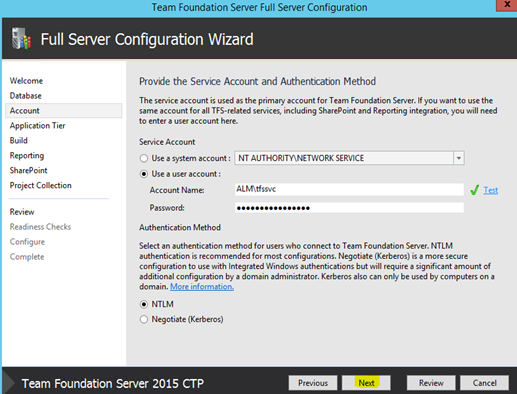
15
Set application tier settings.
16
Below is new vNext Build Service. This will setup a default agent with the installer. I will explain more on vNext Builds in a future posts.
17
Selected to configure reporting.
18
Provided report service instance name.
19
Provided analysis service instance.
20
Provided TFS reports account here.
21
Provided preconfigured SharePoint site collection (Team site created in SharePoint foundation 2013) url and SharePoint administration url.
22
Specified the default project collection name.
23
Reviewed all configurations and clicked next to run readiness checks.
24
25

Warning about SharePoint RAM requirements can be safely ignored since this server is setup for the purpose of testing new features and capabilities of TFS 2015. Clicked Configure to proceed with the configuration.
26
27
28
Everything looked perfect above but shown an issue with a warning in the next screen. SharePoint seemed to be not configured properly which is completely OK for a CTP. :) Believing it could be fixed later I clicked Close to complete the wizard.
29
30

Checked extensions for SharePoint in Admin Console and it seems fine.
30.1

In the project collection SharePoint is not configured. So this is the issue shown in the wizard.
31
Without changing anything else I thought first to try configuring it here and clicked Edit Default Site Location. Provided relative path and clicked OK. Confirmed to create a new site (http://ch-tfstst/sites/tfs was configured previously as a Team Site Collection in SharePoint Central Administration).
32
Default Site configured for the project collection and verified in SharePoint whether the Default Collection site is created.
33
34
Let’s explore new features of TFS 2015 with the CTP in coming posts.

Popular Posts