Monday, 19 January 2015

TFS 2013.4 Version Control – Enhanced Web Portal – Part 1

Several enhancements are released with TFS2013.4 for version control in TFS web portal. Let’s explore them to understand how useful each of them.

1. It is possible to download a source code folder as a zip file from web portal. May be useful, but difficult to come up with a real usage example.

1 

2

2. Code file view provides similar look at code files like in visual studio. This really helps to do code reviews etc. just using the browser. A download of code file is available as well.

2.1

3. Can show/hide annotations of a code file.

2.3

4. Changeset enhanced view provides file by file detailed view of changes.

3

4

Associated work items shown if any.

2.2

5. Discussions can be initiated as comments based on code. Other team members can reply to comments. Possible to add overall comment for the changeset.

5

6. Discussions as inline comments to the changeset code.

6

7. Create a work item based on a discussion on changeset. Would be really useful to create User Story/Bug/Task based on code reviews, discussion on implementation etc.

7

8


Discussion can be opened from work item.

9

10


8. Changesets can be viewed as list of files, files by folder or with full folder file hierarchy.

11

9. Several options to show comments (discussion comments) and filter files with discussions also available.

12

10. Changeset file changes can be viewed side by side or as inline changes. Inline view is really easy to read with line numbers.

13

14


11. As shown above options available to show hide comments made in portal.

15

12. Changeset file view can be in full screen mode.

17

16

There are lot more for for Version Control enhancements in Web Portal and I will show them in Part 2.

Sunday, 4 January 2015

Bring Test Controller 2012.2 Online After Upgrading TFS Server to 2013.4

Recently I have done a TFS upgrade from 2012.2 to 2013.4 with a hardware move. DNS settings changed to access new TFS server using the previous TFS URL. All went well and I when I started TFS 2012.2 build farm (plan to upgrade them later) it was working as expected.
Started the test controllers and when viewed in MTM Lab Center the controllers shown offline.
1
My plan was to upgrade the test controllers later since currently lot of lab environments in use. Event viewer in test controller indicated an error.
2
Restarted test controller service, restarted test controller machine, but was not helpful.
3
Tried clean TFS cache in Test Controller machine.
4
All of above was not helpful. So I decided to take a risk and reconfigure the test controller 2012.2 with the new TFS (2013.4) server. My only worry was what will happen to the existing lab environments after reconfiguring test controller.
5
6
After reconfiguring everything was smoothly working. All my previously up and running labs were working as expected.
7
8

Wednesday, 31 December 2014

Quick Edit Code in VSO

Quick code editing in Visual Studio Online is a newly added feature with latest release. You can edit code check-in without opening Visual Studio. This is really useful to do a quick fix to your code just with a browser.
Let me show you how you could do this.
Explore a team project source code in VSO Web Portal and click on a file.
a1
Click on edit will load the edit mode.
a2
Add comments and check in (undo check out also possible)
a3
a4

a5

Changeset can be viewed and file changes can be compared.
 a6
It is possible to add new files, upload new files and rename files as well.
a7
a8

a9
Note: Code in above green box is manually added by me :).
You will find this feature is really useful to do quick fixes to code from wherever you are and whatever the device you use as long as you have a browser that can run VSO.
Currently this feature is not available for TFS on premise (2013.4), but will be available with a future update.

Saturday, 27 December 2014

Trend Charts

This cool feature has been in Visual Studio Online for some time and came to TFS on premises with 2013.4. Today I am going to show with a simple example “how much useful this feature is”.
Below query is written to view all Bug work items.
a1
This returns all Bugs with the state.
a2
Saved the above query as a shared query and created a Trend Chart.
a3
 a4
Chart configured to show the trend of Bug work item state, for last four weeks.
a5
The above chart revealed really interesting information. In the first two weeks in December Team has worked hard to get as much as bugs before the holiday season. Since the holidays started Bug closing trend stopped. New Bugs slowly adding in the holiday season as well since clients are also adding Bugs. Resolving and Activation of bugs came into a halt as well with the start of holidays. Above is really awesome information for the team when they come after holidays.
By pinning this chart to Team Project home page, team will know by a quick glance at the chart, they have lot of Bugs in the backlog, to be fixed in the new year. So team can put their effort to maximum with a fast forward gear to resolve and close the Bugs as soon as possible.
a6
Trend charts supporting longer time than last four weeks (last 12 weeks, last year) are already available with VSO (Visual Studio Online) and this will be available for on premises TFS in a future update.
a7

Monday, 22 December 2014

TFS Backup/Restore – Lessons Learnt

I was upgrading a TFS from 2012.2 to 2013.4 today and came across unexpected situations in backing up and restoring DBs. Thought worth sharing my experience to anyone else doing upgrades might easily do these mistakes.


Lesson 1
I have done a trial upgrade before today’s live upgrade and used TFS admin console backup schedule to take a manual scheduled full backup of TFS. This was a hardware migration upgrade and worked fine for the trial. Today when I started actual upgrade I took the TFS offline by executing “TFSServiceControl quiesce” and “net Stop WAS” commands. After that as in trial I started the scheduled backup manually from TFS admin console.
After about 30 minutes nothing happened. No backups were created in the path specified. This is when me and my colleagues realized this could be because we have taken the TFS services offline (it was necessary to take it offline to make sure no team members from three global offices access the current TFS while upgrade going on, so we can assure no data new TFS production).
We started TFS services again using “TFSServiceControl unquiesce” and “net start WAS” followed by a “iisreset”. Suddenly backups started getting created. So it is confirmed TFS services specially Job Agent Service should be running to get backups via admin console scheduled backups. Since we wanted to take TFS offline we did take it offline again, and took manual DB backups. Including backing up Reporting Services key as well. List of items we backed up is below for reference. ( Bad thing was we lost about one hour of the planned schedule)
Tfs_configuration
All Collection DBs
Tfs_Analysis DB
Tfs_Warehouse DB
ReportServer DB
ReportServerTemp DB
Reporting Services key

Lesson 2
The second one was a bit of unfortunate situation. While we were taking down build servers etc we have seen a notification of windows update. We did not consider it would affect our work since we had seen nothing in the intermediate machine we have used to do the upgrade. We took backups of all TFS DBs and started restoring them in a intermediate server to run the upgrade before moving database to new production hardware. One collection DB out of six collection DBs having size of 182 GB was the largest. While we were restoring it in the SQL 2008 R2 SP1 (Simulating current production TFS environment) took around two hours to reach 80% restore completion and suddenly crashed. The error message was SQL services not found. When checked found SQL Server is down. Reason was a windows update has shut down the service of SQL while restore operation is going on. Disabled windows updates, and restarted restore DBs.This cost us 2 additional hours.

Friday, 19 December 2014

TFS Job History –View Success Jobs

TFS Job monitoring is possible using https://YourTFSServer/tfs/_oi . More information on this can be found on here.
I have had a look at this and found some indications of failures.
a1
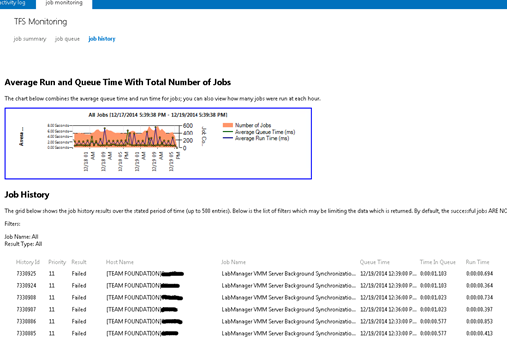
When I have a look at Job history I see the failure jobs.
a2
Job history shown here says successful jobs are not shown. and there is no way to filter and see them in here.
“The grid below shows the job history results over the stated period of time (up to 500 entries). Below is the list of filters which may be limiting the data which is returned. By default, the successful jobs ARE NOT shows to minimize distractions when reviewing the results.”
I thought there should be a way to see them since it is coming from TFS Databases for sure. Ok what I am going to explain below is how to view success jobs as well, but this is accessing TFS DB, make sure not to change any data here. View information would not harm anything :)
First I needed to find the Job I am interested in “LabManager VMM Server Background Synchronization Job”. I went through the tables of TFS_Configuration database and found a “tbl_JobDefinition” table but the job was not there. Then I decided to explore each collection DB and there was another “tbl_JobDefinition”. I executed below query on that and found the Job Definition.
a3 
Query 1
-------------------------------------------------------------------------------------------------------
SELECT TOP 1000 [PartitionId]
      ,[JobId]
      ,[JobName]
      ,[ExtensionName]
      ,[Data]
      ,[EnabledState]
      ,[Flags]
      ,[LastExecutionTime]
      ,[PriorityClass]
  FROM  [dbo].[tbl_JobDefinition]
  WHERE [JobName] = 'LabManager VMM Server Background Synchronization Job'
-------------------------------------------------------------------------------------------------------
Executed above for each collection and found that the jobid has same GUID for all the collections.
There was no Job History table in collection DBs. But in TFS_Configuration there is one. When tried with the GUID for “LabManager VMM Server Background Synchronization Job”, found the job history there, all successful and unsuccessful for the last one month period.
a4
Query 2
-------------------------------------------------------------------------------------------------------
SELECT TOP 1000 [HistoryId]
      ,[JobSource]
      ,[JobId]
      ,[QueueTime]
      ,[StartTime]
      ,[EndTime]
      ,[AgentId]
      ,[Result]
      ,[ResultMessage]
      ,[QueuedReasons]
      ,[QueueFlags]
      ,[Priority]
  FROM [Tfs_Configuration].[dbo].[tbl_JobHistory]
  where [JobId] = '1039066B-8187-4831-BCB5-CFC981D98140'
  order by [StartTime] asc
-------------------------------------------------------------------------------------------------------
I thought the Job Source should be the collection, Modified the query to link with “tbl_CatalogServiceReference, ”“tbl_CatalogResource” and “tbl_CatalogResourceType” got it confirmed.
a5
Query 3
-------------------------------------------------------------------------------------------------------
SELECT        TOP (1000) H.HistoryId,
                H.StartTime,
                H.EndTime,
                H.Result,
                H.ResultMessage,
                CR.DisplayName AS Resource,
                CRT.DisplayName AS [Resource Type]
FROM            [Tfs_Configuration].dbo.tbl_JobHistory H
                    INNER JOIN
                         [Tfs_Configuration].dbo.tbl_CatalogServiceReference CSR
                         ON CSR.ServiceIdentifier = H.JobSource
                         INNER JOIN
                         [Tfs_Configuration].dbo.tbl_CatalogResource CR
                         ON CSR.ResourceIdentifier = CR.Identifier
                         INNER JOIN
                         [Tfs_Configuration].dbo.tbl_CatalogResourceType CRT
                         ON CRT.Identifier = CR.ResourceType
WHERE        (H.JobId = '1039066B-8187-4831-BCB5-CFC981D98140')
ORDER BY H.StartTime
-------------------------------------------------------------------------------------------------------
If you are trying this out REMEMBER you are accessing TFS configuration and collection DBs. So BE CAREFUL not to edit any data.


Popular Posts