How many time you lost the code segment you were looking at, when try to "Go To Definition" (F12) few time with VS Text Editor (Code Window)? Upcoming VS 2013 going to have a great feature enabling us much more..and a BIG thank must go to MS for giving us this cool..great feature called "Peek Definition" (Alt+F12).
To explain what it is, I am going to use a very simple and doing nothing application. The application contains Class Library and Window Form app which is referring the class library.
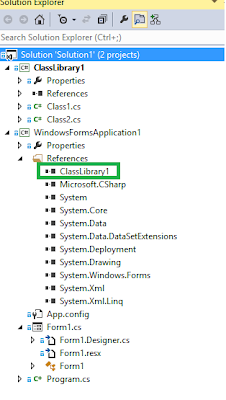
Class Library has two classes, Class1 and Class2. The Class1 has a method "GeMgs" calling "GetMessage" method in Class2.

The windows application button click event is calling Class1 "GetMgs" method.

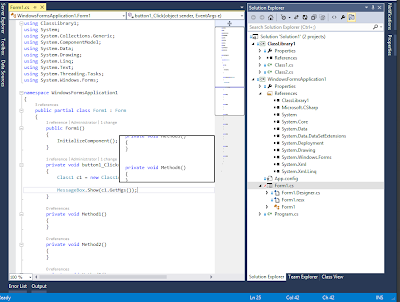
Lets close all other code windows except the code window of Form1 which is having the button click event. Click on GetMsgs method and press "Alt+F12". New feature "Peek Definition" is in action and you can see you current code shifts down and the Class1, "GetMgs" appears in a preview window.

Can we peek definition inside preview window opened? Yes we can. Let's click on "GetMessage" and press "Alt+F12".

Class2 "GetMessage" appears in preview window and you can see navigation buttons also appear in the window.

By clicking navigation buttons you can navigate back and forth.

Great, isn't it?

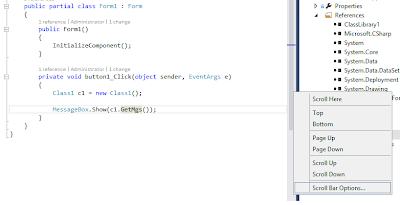
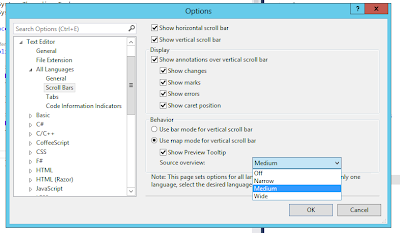
Awesome !!! The enhanced scroll bar preview, I explained in my previous post, even works inside the Peek Definition preview window.

Amazing thing about this new feature is that we have not gone out of the code segment we were originally in. In this instance we are still in the Form1 button click, and once you hit "ESC" (escape) button Peek Definition preview window will disappear.
Full list of keyboard shortcuts of Peek Definition feature and more information available at http://msdn.microsoft.com/en-us/library/vstudio/dn160178%28v=vs.120%29.aspx
Await for more productivity enhancements in VS 2013.. and enjoy coding with VS 2013..