The missing fonts in windowsservercore-ltsc2022 docker images can be installed as described in the blog post here. However, when we are not using hosted agents, and when we use kubernetes based self hosted build agents, we do not have access to host machine, to perform the all steps described in the post "Adding optional font packages to Windows containers". Since docker is not supported on self hosted build agent running as container in AKS, we have to use az acr build to build the docker images in such cases. To setup fonts in this kind of a situation in a Azure DevOps pipeline we can take the steps described in this post.
Showing posts with label install. Show all posts
Showing posts with label install. Show all posts
Thursday, 25 April 2024

Wednesday, 15 November 2023
Installing .NET 8 Runtime on Ubuntu 22.04 Docker Image
.NET 8 was release on November 14. There are docker container images for .NET 8 available for dotnet runtime and can be found with tag list here https://mcr.microsoft.com/v2/dotnet/runtime/tags/list . However, if you want to setup .NET 8 runtime on another specific Linux docker image for example on ubuntu:jammy , amd64/ubuntu:22.04 or with a special image such as ffmpeg Linux server image linuxserver/ffmpeg:amd64-version-6.0-cli, where you might want to run your .NET app to use ffmpeg, In such cases, where you you might have to setup .NET 8 runtime on a specific docker image, with your other tools readily available, details mentioned may come in handy. Lets, see how we can install .NET 8 runtime on base Ubuntu 22.04 images, using a docker file.
Friday, 27 October 2023
Install Kubectl on WSL (Windows Subsystem for Linux)
Kubectl is the command line which will help to do everything with AKS or any other kubernetes set up. To setup or update kubectl on WSL follow the steps below.

Friday, 8 September 2017
Download Offline Installer for VS 2017
There is no ISO available to download for VS2017. You can view why Microsoft did not make ISO available, is discussed in here. However if you want to download VS 2017 to perform an offline installation you can follow the steps described below.
- Download the relevant VS installation .exe (for example vs_enterprise__984310617.1489458965.exe).
- Copy it to your local hard drive folder let’s say E:\Install
- Create a folder to download installation files say E:\Install\VS2017 (can be in a different path such as D:\VS2017)
- Open command prompt as administrator and change the directory to where your downloaded .exe is available
- Execute the command below
Sunday, 25 September 2016
TFS15 RC1 Setup Guide
This is a step by step guide on setting up TFS 15 RC1 for evaluation purpose. This a “go-live” release and supported by Microsoft support team. Requirements for TFS15 is specified here.

Download TFS15 RC1, ISO image or web installer.
Make sure you have installed supported SQL Server version, with reporting services in native mode.
- SQL Server 2016
- SQL Server 2014
Setup SharePoint Foundation 2013. This is optional. How to setup SharePoint Foundation 2013 is here.
Run the installer.


Restart the machine

Launch the TFS Admin Console after restart and start configuration wizard for “Configure Team Foundation Server”.


Select new deployment and select advance configuration.


Provide the SQL Server name and verify.

Specify a service account for TFS.

Specify a public URL for TFS.

You have option to provide HTTP or HTTPS access.


Optional search feature can be configured as well. More information of the feature here.


Configure reporting.

Report server urls are set to access local only.


Configure optional SharePoint for TFS, if the SharePoint foundation is setup earlier. Make sure alternate access mappings for SharePoint urls properly set.


Provide a project collection name and review.


Run readiness checks.


Accept download and install of JRE (java Runtime Environment) which is a prerequisite of Search feature, and run configure.


JRE configuration might fail. If this happens manually download and install JRE.

Download Java runtime 8u102 from here and install.


Run the configuration wizard for TFS again and in readiness checks still shows JRE unavailability.

This happens because JAVA_HOME is not properly set with JRE install. how to set JAVA_HOME is here. Setting JRE_HOME is not working for TFS, You have to set JAVA_HOME environment variable. Make sure to use the shortened path name.

Readiness checks should pass and configuration of TFS should be successful.


To configure report services urls for network access with FQDN follow the steps below. Click edit on Reporting tab of TFS Admin Console.

Test warehouse analysis services connectivity.


Manually type in FQDN for report services urls.


Reporting services set to use FQDN.

Friday, 29 May 2015
Resolve TF400069: You must install either SQL Server Analysis Services version 11.0 ...
Setting up TFS AT (Application Tier) and DT (Data Tier) in separate machines (not a single server installation) might raise below error in Analysis Services configuration for TFS.
*******************************************************************************************************
TF400069: You must install either SQL Server Analysis Services version 11.0 or the SQL Server Client Tools on the application tier to ensure that the Analysis Services object model is present for warehouse processing.
*******************************************************************************************************

As the error message clearly stated setting up SQL Connectivity Tools will resolve this issue.

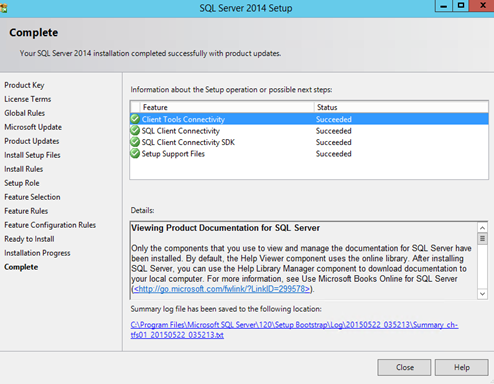

*******************************************************************************************************
TF400069: You must install either SQL Server Analysis Services version 11.0 or the SQL Server Client Tools on the application tier to ensure that the Analysis Services object model is present for warehouse processing.
*******************************************************************************************************

As the error message clearly stated setting up SQL Connectivity Tools will resolve this issue.


Subscribe to:
Posts (Atom)
Popular Posts
-
 The hosts file in /etc/hosts is allowing the WSL distros to map IP addresses to domain names before going to domain name servers, similar...
 -
 Can a Coded UI test executed with a Console Application? Yes it is possible. I am going to explain how it can be done. I am going to exec...
 -
Pull Request are the controlled way to bring in the changes to your stable branches in your Azure Git repos, or for that matter all Git prov...
-
The new Azure Managed Redis can be deployed with balanced compute and memory with high availability, and useful modules such as RedisJson a...
-
We have discueed, that we have to use an environment variable to handle input parameter default values, if we are using trigger for workflo...


