Showing posts with label vs. Show all posts
Showing posts with label vs. Show all posts
Wednesday, 18 September 2019
Using VS Code Extension for Azure Pipeline–Part1
Visual Studio Code is becoming a popular code editing tool in all platforms, Recently VS Code was added with Azure Pipeline extension which can generate YAML based pipeline code. The extension assists in writing YAML pipeline code providing IntelliSense. Let’s look at how we can get started with the Azure Pipeline extension to generate a YAML base pipeline.

Friday, 8 September 2017
Download Offline Installer for VS 2017
There is no ISO available to download for VS2017. You can view why Microsoft did not make ISO available, is discussed in here. However if you want to download VS 2017 to perform an offline installation you can follow the steps described below.
- Download the relevant VS installation .exe (for example vs_enterprise__984310617.1489458965.exe).
- Copy it to your local hard drive folder let’s say E:\Install
- Create a folder to download installation files say E:\Install\VS2017 (can be in a different path such as D:\VS2017)
- Open command prompt as administrator and change the directory to where your downloaded .exe is available
- Execute the command below
Wednesday, 17 April 2013
Code Review with TFS 2012 and VS 2012
Let's have a look at another cool feature comes along with VS 2012 and TFS 2012. There is traceability and visibility of entire code review process with this new feature. It is very easy to use as well.
I will explain everything related to code reviews with a very simple example. I have simple button click which assigns a text to a text box in my form. I want my supervisor to do a code review on this great implementation that I have done before I check in my source code. So I got to Team Explorer --> My Work and request a code review.

I can choose who would do the code review.It can be more than one person. I enter a title for the code review and a description if I want. When I submit my request VS 2012 associates all code files I have changed or newly added (my all pending changes) to the code review request. Behind the scene what happens is my pending changes are shelved and that shelve-set is associated automatically to the Core Review Request TFS work item.

 It is possible to submit already checked in change-set to code review as well. Simply right click on change-set and request a code review.

The supervisor(s) will see the code review request on his My Work. He has the
option to accept or decline the request.

Reviewer can view the changes done and can comment as overall comment or comment on files or even add comment highlighting the code sections.
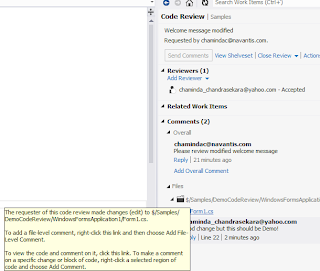


Reviewer can mark each individual file as reviewed to keep track of his own activities.

He can add comments and save them. The comments will only be seen by the other party when he send them.

Once reviewer send the code review comment or finishes the code review I can see it in My Work and close the code review request.

I can do changes on my supervisors recommendations and mark them as done to keep track, and create a new code review request if I want. This time my old code review is automatically linked with new code review. Like all other work items in TFS world, history is recorded for Code Reviews and you can review your code reviews.
Great stuff..isn't it? VS 2012/ TFS 2012 rocks with these new cool features.
I will explain everything related to code reviews with a very simple example. I have simple button click which assigns a text to a text box in my form. I want my supervisor to do a code review on this great implementation that I have done before I check in my source code. So I got to Team Explorer --> My Work and request a code review.

I can choose who would do the code review.It can be more than one person. I enter a title for the code review and a description if I want. When I submit my request VS 2012 associates all code files I have changed or newly added (my all pending changes) to the code review request. Behind the scene what happens is my pending changes are shelved and that shelve-set is associated automatically to the Core Review Request TFS work item.


The supervisor(s) will see the code review request on his My Work. He has the
option to accept or decline the request.

Reviewer can view the changes done and can comment as overall comment or comment on files or even add comment highlighting the code sections.
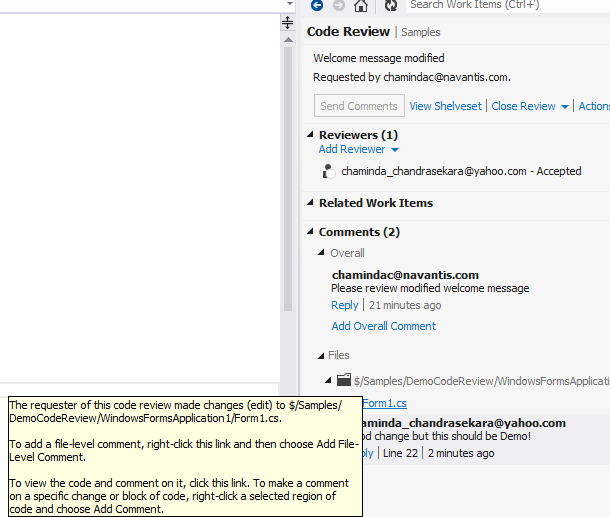


Reviewer can mark each individual file as reviewed to keep track of his own activities.

He can add comments and save them. The comments will only be seen by the other party when he send them.

Once reviewer send the code review comment or finishes the code review I can see it in My Work and close the code review request.

I can do changes on my supervisors recommendations and mark them as done to keep track, and create a new code review request if I want. This time my old code review is automatically linked with new code review. Like all other work items in TFS world, history is recorded for Code Reviews and you can review your code reviews.
Great stuff..isn't it? VS 2012/ TFS 2012 rocks with these new cool features.
Subscribe to:
Posts (Atom)
Popular Posts
-
 The hosts file in /etc/hosts is allowing the WSL distros to map IP addresses to domain names before going to domain name servers, similar...
-
 Can a Coded UI test executed with a Console Application? Yes it is possible. I am going to explain how it can be done. I am going to exec...
-
Pull Request are the controlled way to bring in the changes to your stable branches in your Azure Git repos, or for that matter all Git prov...
-
The new Azure Managed Redis can be deployed with balanced compute and memory with high availability, and useful modules such as RedisJson a...
-
You might encounter compilation error in Visual Studio 2015 when a new .NET Core 1 web app is created, if you have installed Visual Studio 2...


