SQL Server Integration Services (SSIS) projects can be created to perform ETL (Extract Transform and Load) operations. As Implementing of Continuous Delivery becoming a mandatory aspect of any type of software project it is vital for SSIS projects to be able to implement CI/CD. With the availability of the extension “SSIS Build & Deploy” in Marketplace for Azure DevOps, the CI/CD implementation for SSIS has become straightforward to implement. Let’s look at a sample to understand how to get CI/CD implemented for SSIS project with Azure DevOps.
Showing posts with label Integration. Show all posts
Showing posts with label Integration. Show all posts
Friday, 28 September 2018

Friday, 22 August 2014
Configure TFS Connection for VS 2013 Release Management
Another optional configuration for VS Release Management is TFS connections. TFS Connections are optional because Release Management is capable of using package/payload built by any other build system.
If TFS is used in an organization it can be integrated with VS Release Management to provide as end to end solution, which tracks TFS based Requirements to Production Deployments.
With VS Release Management TFS can be integrated at the project collection level. This allows integration of project collections from different TFS servers with a single VS Release Management Server. In other words VS Release Management Server is capable of managing releases, using builds done manually, any other build system or any number of TFS build Servers.

First step is to setup an account to integrate TFS and VS Release Management Server.
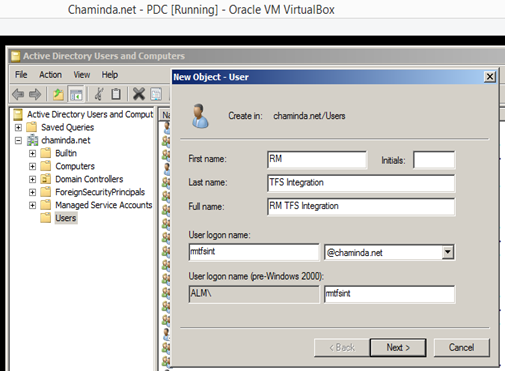

In Administration tab of the VS Release Management Client go to Manage TFS and click on New button.


Select the TFS Integration account.

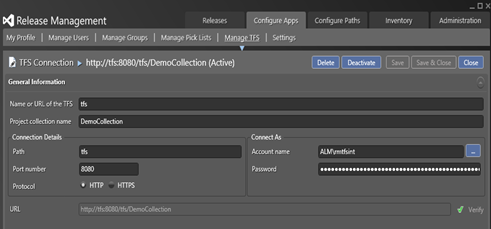
Provide the TFS Project Collection details.

Click on verify to check the connection to Project Collection.

Access denied. This is because the TFS integration account is not having required permissions in the Project Collection. Release management installation guide specifies the account requirement as below.

To enable the TFS integration account to be used to connect all the project collections with release management server, the TFS integration account should be added to “Team Foundation Service Accounts”.
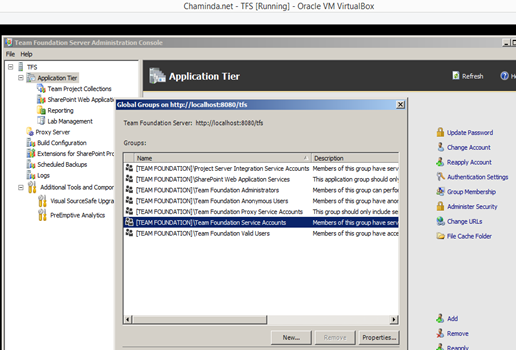
This TFS group is not allowing to directly add remove users with TFS Console Admin. The option is to use the g+ command as shown below.
TFSSecurity /g+ groupIdentity memberIdentity [/collection:CollectionURL] [/server:ServerURL]
Example
tfssecurity /g+ "Team Foundation Service Accounts" n:ALM\rmtfsint ALLOW /server:http://tfs:8080/tfs
Above command should be executed in Developer Command prompt of VS. To find the Developer Command prompt for VS 2013 in Windows 8.1 right click on VS Shortcut and open file location.

Open the VS Tools folder

Pin the Developer Command Prompt for VS2013 to Start Menu.

Using VS Developer command prompt execute g+ command
tfssecurity /g+ "Team Foundation Service Accounts" n:ALM\rmtfsint ALLOW /server:http://tfs:8080/tfs

This will add the TFS integration account to "Team Foundation Service Accounts"


In Release Management Client connection to TFS project collection can be successfully verified and saved.
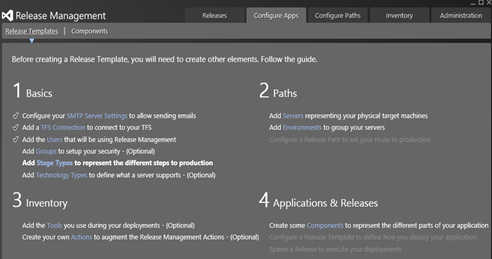
Next step is to define the Release Management Stages.
If TFS is used in an organization it can be integrated with VS Release Management to provide as end to end solution, which tracks TFS based Requirements to Production Deployments.
With VS Release Management TFS can be integrated at the project collection level. This allows integration of project collections from different TFS servers with a single VS Release Management Server. In other words VS Release Management Server is capable of managing releases, using builds done manually, any other build system or any number of TFS build Servers.

First step is to setup an account to integrate TFS and VS Release Management Server.


In Administration tab of the VS Release Management Client go to Manage TFS and click on New button.


Select the TFS Integration account.

Provide the TFS Project Collection details.

Click on verify to check the connection to Project Collection.

Access denied. This is because the TFS integration account is not having required permissions in the Project Collection. Release management installation guide specifies the account requirement as below.

To enable the TFS integration account to be used to connect all the project collections with release management server, the TFS integration account should be added to “Team Foundation Service Accounts”.

This TFS group is not allowing to directly add remove users with TFS Console Admin. The option is to use the g+ command as shown below.
TFSSecurity /g+ groupIdentity memberIdentity [/collection:CollectionURL] [/server:ServerURL]
Example
tfssecurity /g+ "Team Foundation Service Accounts" n:ALM\rmtfsint ALLOW /server:http://tfs:8080/tfs
Above command should be executed in Developer Command prompt of VS. To find the Developer Command prompt for VS 2013 in Windows 8.1 right click on VS Shortcut and open file location.

Open the VS Tools folder

Pin the Developer Command Prompt for VS2013 to Start Menu.

Using VS Developer command prompt execute g+ command
tfssecurity /g+ "Team Foundation Service Accounts" n:ALM\rmtfsint ALLOW /server:http://tfs:8080/tfs

This will add the TFS integration account to "Team Foundation Service Accounts"


In Release Management Client connection to TFS project collection can be successfully verified and saved.

Next step is to define the Release Management Stages.

Tuesday, 13 May 2014
Resolve TFS Integration Platform Conflict - TFS WIT bypass-rule submission is enabled. However, the migration service account 'Chaminda Chandrasekara' is not in the Service Accounts Group on server
I have experienced the error below while trying to migrate work items from a TFS team Project to another team project using TFS Integration Tools.

Microsoft.TeamFoundation.Migration.Tfs2010WitAdapter.PermissionException: TFS WIT bypass-rule submission is enabled. However, the migration service account 'Chaminda Chandrasekara' is not in the Service Accounts Group on server 'http://tfsserver:8080/tfs/sandbox'.
at Microsoft.TeamFoundation.Migration.Tfs2010WitAdapter.VersionSpecificUtils.CheckBypassRulePermission(TfsTeamProjectCollection tfs)
at Microsoft.TeamFoundation.Migration.Tfs2010WitAdapter.TfsCore.CheckBypassRulePermission()
at Microsoft.TeamFoundation.Migration.Tfs2010WitAdapter.TfsWITMigrationProvider.InitializeTfsClient()
at Microsoft.TeamFoundation.Migration.Tfs2010WitAdapter.TfsWITMigrationProvider.InitializeClient()
at Microsoft.TeamFoundation.Migration.Toolkit.MigrationEngine.Initialize(Int32 sessionRunId)
at Microsoft.TeamFoundation.Migration.Tfs2010WitAdapter.VersionSpecificUtils.CheckBypassRulePermission(TfsTeamProjectCollection tfs)
at Microsoft.TeamFoundation.Migration.Tfs2010WitAdapter.TfsCore.CheckBypassRulePermission()
at Microsoft.TeamFoundation.Migration.Tfs2010WitAdapter.TfsWITMigrationProvider.InitializeTfsClient()
at Microsoft.TeamFoundation.Migration.Tfs2010WitAdapter.TfsWITMigrationProvider.InitializeClient()
at Microsoft.TeamFoundation.Migration.Toolkit.MigrationEngine.Initialize(Int32 sessionRunId)
The fix was so simple thanks to Chev Bryan's blog post here.
I just executed below command in VS 2012 Developer Command Prompt to add the account executing migration to Team Foundation Service Accounts.
tfssecurity /g+ "Team Foundation Service Accounts" n:domain\username ALLOW /server:http://tfsserver:8080/tfs

Need "Edit Collection Level Information" to execute above command.

The migration was successful

Subscribe to:
Posts (Atom)
Popular Posts
-
 Let’s look at how we can specify the artifact version to download based on the resource CI build linked to the CD pipeline and check on how ...
 -
 The hosts file in /etc/hosts is allowing the WSL distros to map IP addresses to domain names before going to domain name servers, similar...
 -
 Can a Coded UI test executed with a Console Application? Yes it is possible. I am going to explain how it can be done. I am going to exec...
 -
Pull Request are the controlled way to bring in the changes to your stable branches in your Azure Git repos, or for that matter all Git prov...
-
The new Azure Managed Redis can be deployed with balanced compute and memory with high availability, and useful modules such as RedisJson a...

