We have discueed, that we have to use an environment variable to handle input parameter default values, if we are using trigger for workflow on push in the post "Setting Workflow Environment Variable Based on Input Parameter in GitHub Actions - on workflow_dispatch and Use a Default Value on push". If we have to pass on the input paramter value from a workflow to a reusable workflow, it does not work as expected and it is a limitation of reusable workflows as explained in here. Let's try to understand with an example how to pass an env variable to a reusable workflow.
Showing posts with label action. Show all posts
Showing posts with label action. Show all posts
Sunday, 17 September 2023

Thursday, 14 September 2023
Setting Workflow Environment Variable Based on Input Parameter in GitHub Actions - on workflow_dispatch and Use a Default Value on push
GitHub actions workflows support input only on manual trigger workflow_dispatch. What if we need to use default value in other triggers such as on push and use input parameter in case of manual trigger workflow_dispatch? Let's explore our options with an example.
Thursday, 7 September 2023
Avoid GitHub Action Workflow Code Duplication - Using Composite Actions to Create Reusable Templates
Azure DevOps yaml files for piplines can be created as templates to avoid duplicating same set of tasks in multiple areas of the pipelines. For GitHub actions workflow, we have seen here in "Build and Unit Tests for .NET Apps with GitHub Actions" the same steps are repeated in both Windows and Linux, build and unit test run. The solution to avoid duplicating same steps in multiple jobs in a GitHub actions workflow is the usage of composite actions. Let's modify our workflow implemented in "Build and Unit Tests for .NET Apps with GitHub Actions" to use composite action to build and unit test, and reuse that in both Windows and Linux job.
Monday, 8 September 2014
Tool to Execute Multiple SQL Scripts – VS 2013 Release Management – Part 1
Is it possible to execute set of SQL scripts downloaded to Deployment Agent in VS 2013 Release Management? Yes. But this requires a custom tool and an action.
Let’s see how we can do this step by step.
As the first step write a PowerShell script capable of executing batch of scripts in a transaction.
Next create a tool in Release Management Client as shown below.

Parameters are
Create an action as shown below using the tool created above.

This action can be used in a release template as shown below to execute SQL scripts in a transaction.

On failure scripts actions will not be committed and release management action will fail. In Part 2, I will show this tool in action.
Let’s see how we can do this step by step.
As the first step write a PowerShell script capable of executing batch of scripts in a transaction.
 Param([string]$ServerInstance, [string]$DatabaseName, [string]$ScriptPath)
  $ErrorOccured = $false
  #Executing following snapins to Invoke-SqlCmd
  Add-PSSnapin SqlServerCmdletSnapin100 -ErrorAction SilentlyContinue
  Add-PSSnapin SqlServerProviderSnapin100 -ErrorAction SilentlyContinue
  Write-Host "Executing patch scripts of path: $PatchScriptsPath"
  Start-Transaction -RollbackPreference Error
  Use-Transaction -TransactedScript {
   foreach ($file in Get-ChildItem -path $ScriptPath -Filter "*.sql")
   {
    Write-Host Executing: $file.name ...
    $ScriptPath = $ScriptPath + "\" + $file.name
    Invoke-Sqlcmd -ServerInstance $ServerInstance -Database $DatabaseName -InputFile $ScriptPath -ErrorAction SilentlyContinue -ErrorVariable errors
    foreach($error in $errors)
    {
     if ($error.Exception -ne $null)
     {
      $ErrorOccured = $true
      Write-Host -ForegroundColor Red "Exception: $($error.Exception)"
     }
    }
   }
  } -UseTransaction
  if ($ErrorOccured)
  {
   Undo-Transaction
   throw "Error occured while Executing SQL Scripts."
  }
  else
  {
   Complete-Transaction
   Write-Host Successfully executed all SQL scripts.
  }
Next create a tool in Release Management Client as shown below.

Parameters are
| Name | Type | Description |
| ServerInstance | Standard | SQL Server Name with Instance Name |
| DatabaseName | Standard | Name of the database the scripts should run |
| ScriptPath | Standard | Location of the scripts to be executed |
Create an action as shown below using the tool created above.

This action can be used in a release template as shown below to execute SQL scripts in a transaction.

On failure scripts actions will not be committed and release management action will fail. In Part 2, I will show this tool in action.
Saturday, 26 July 2014
Tool & Action to Run Custom PowerShell Scripts in Deployment Agent – VS 2013 Release Management
Can we run a custom PowerShell script in Release Management Deployment Agent? One way is to create a PowerShell script and add it as a resource and create a tool and an action in Release Management Inventory. This is more suitable for adding a generic tool. But if we want to run a custom PowerShell script specific to a given release template, copied to deployment machine from the build drop, can we do that? Out of the box set of tools and actions in Release Management Server do not support this. We can do this by creating a generic tool and an action.
Let me show you how to do this step by step.
In Release Management Client go to Inventory tab Tools, click on New.

For the execution command type “powershell” and for the arguments type
-command __ScriptToExecute__ __Arguments__
This will add two parameters in the tool “ScriptToExecute” and “Arguments”. Provide a suitable Name and a Description as well.

Click on Save & Close to add the new tool.

Go to Actions and click on New to add new action.

Select the tool we have created and add a new Category for Custom Actions. Fill the Name and Description.

Save to create the new Action.


Let’s test our Tool and Action in action. First we need a very simple PowerShell script like below.

In a test release template now we can see our custom action available.

Fill the script name with the path and arguments(for testing purpose script copied manually to deployment machine, this can be a script downloaded to deployment machine from the build drop using an XCOPY action in the release template).

Save the release template and click New Release to test. This example does not use a build out put, but the action can be used with a template bound to a build drop as well, as a matter of fact it can be used with any release template.

Start the release by clicking on Start.
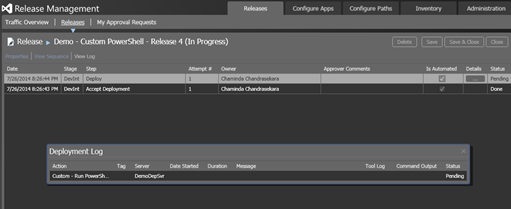
Script execution succeeded.

Click on View Log to see the output from script.

To fail a script based on a condition throw an exception like below and release action will fail.


Let me show you how to do this step by step.
In Release Management Client go to Inventory tab Tools, click on New.

For the execution command type “powershell” and for the arguments type
-command __ScriptToExecute__ __Arguments__
This will add two parameters in the tool “ScriptToExecute” and “Arguments”. Provide a suitable Name and a Description as well.

Click on Save & Close to add the new tool.

Go to Actions and click on New to add new action.

Select the tool we have created and add a new Category for Custom Actions. Fill the Name and Description.

Save to create the new Action.


Let’s test our Tool and Action in action. First we need a very simple PowerShell script like below.

In a test release template now we can see our custom action available.

Fill the script name with the path and arguments(for testing purpose script copied manually to deployment machine, this can be a script downloaded to deployment machine from the build drop using an XCOPY action in the release template).

Save the release template and click New Release to test. This example does not use a build out put, but the action can be used with a template bound to a build drop as well, as a matter of fact it can be used with any release template.

Start the release by clicking on Start.

Script execution succeeded.

Click on View Log to see the output from script.

To fail a script based on a condition throw an exception like below and release action will fail.
Subscribe to:
Posts (Atom)
Popular Posts
-
As we discusssed in " Setup Redis Cluster with JSON and Search Modules on AKS with Binami Redis Using Custom Image " the cluster...
-
 Let’s look at how we can specify the artifact version to download based on the resource CI build linked to the CD pipeline and check on how ...
 -
 The hosts file in /etc/hosts is allowing the WSL distros to map IP addresses to domain names before going to domain name servers, similar...
 -
 Can a Coded UI test executed with a Console Application? Yes it is possible. I am going to explain how it can be done. I am going to exec...
 -
Pull Request are the controlled way to bring in the changes to your stable branches in your Azure Git repos, or for that matter all Git prov...

