Showing posts with label environment. Show all posts

Saturday, 13 June 2026

Enable Updating GitHub Environment Variables via GitHub Actions Workflow

 To update environment  variables defined in GitHub environment, via a GitHub action workflow we cannot use the default GITHUB_TOKEN .

  • GITHUB_TOKEN can interact with repository contents (depending on permissions), create releases, comment on PRs, update issues, etc.
  • GITHUB_TOKEN cannot update repository environments, environment secrets, or environment variables via the GitHub REST API.

  • Saturday, 6 June 2026

    Environment Deployment Approvals for GitHub Action Workflow

     In GitHub actvaions workflows we can use environments to scope varibles and protection rules. Let's compare Azure DevOps pipeline environments to GitHub Actions workflow environments, differences regarding environment deployment approvals, in this post.

    An environment can be configured for approvals as shown below.


    Friday, 29 May 2026

    Code for Creating a Multi Stage Workflow Structure with GitHub Actions - Mapping Azure DevOps Multi-Stage Pipelines to GitHub Actions - Part 3

     In the previous post "Create Multi Stage Pipeline Structure with GitHub Actions - The Layout - Mapping Azure DevOps Multi-Stage Pipelines to GitHub Actions - Part 2" we have dicussed the GitHub action workflow layout mapping to the Azure pipeline structure. The code for workflows can be structured as shown below for the pipeline requirement discussed in "Mapping Azure DevOps Multi-Stage Pipelines to GitHub Actions - Part 1". Note that we have seperated folder structure for job actions and step actions to organize the code properly in a manageable way. However, both are really composite actions in GitHub. Each action name is setup using a folder name as it must be action.yml or action.yaml for actions.


    Saturday, 23 May 2026

    Create Multi Stage Workflow Structure with GitHub Actions - The Layout - Mapping Azure DevOps Multi-Stage Pipelines to GitHub Actions - Part 2

     In "Mapping Azure DevOps Multi-Stage Pipelines to GitHub Actions - Part 1" we have discussed the limitation of GitHub action workflows compared to Azure DevOps pipelines. Further, we have compared the features and possible mappings. In this post, let's try how we can create GitHub workflow structure to make it similar to Azure DevOps pipeline shown in "Mapping Azure DevOps Multi-Stage Pipelines to GitHub Actions - Part 1".

    Lets now look at the a the outcome of GitHub workflow setup, and see how it maps to Azure pipeline structure above creating the below pipeline stages.

    GitHub Workflow

    Note that unlike below fully functional Azure pipeline here in GitHub workflow is only having the structure created only. No approval gates setup or actual steps of execution implemented. But structure is setup keeping the real working workflow in mind. The intialize stage in Azure pipeline publishes AKS manifest files as artifacts in same pipeline, to be used in pepeline jobs, without full repo checkout. However, this is intentionally skipped in GitHub workflow as it seems checkout in every job is required to get the actions and jobs to be executed in GitHub workflow.

    Saturday, 16 May 2026

    Mapping Azure DevOps Multi-Stage Pipelines to GitHub Actions - Part 1

     Migrating from Azure DevOps to GitHub Actions is mostly about rethinking stages → jobs, and stage dependencies → job dependencies (needs) while keeping environments and deployment isolation intact. This is a bit challanging task as GitHub actions does not support independant varaible groups and environments as in Azure DevOps. In this post let's look at  how a classic multi-stage deployment flow can be represented cleanly in GitHub Actions.

    The Source Azure DevOps pipline can be a single env deployment such as below.

    Saturday, 10 August 2024

    Copy Environment Across Team Projects in Azure DevOps

     We have dicussed how to "Copy Variable Groups Across Team Projects in Azure DevOps" in a previous post. In similar way we can use a scrip with Azure DevOps REST API to copy environment defined in Azure DevOps across team projects.

    Sunday, 17 September 2023

    Passing Environment Variables to Reusable Workflows in GitHub Actions

     We have discueed, that we have to use an environment variable to handle input parameter default values, if we are using trigger for workflow on push in the post "Setting Workflow Environment Variable Based on Input Parameter in GitHub Actions - on workflow_dispatch and Use a Default Value on push". If we have to pass on the input paramter value from a workflow to a reusable workflow, it does not work as expected and it is a limitation of reusable workflows  as explained in here. Let's try to understand with an example how to pass an env variable to a reusable workflow.

    Thursday, 14 September 2023

    Setting Workflow Environment Variable Based on Input Parameter in GitHub Actions - on workflow_dispatch and Use a Default Value on push

     GitHub actions workflows support input only on manual trigger workflow_dispatch. What if we need to use default value in other triggers such as on push and use input parameter in case of manual trigger workflow_dispatch? Let's explore our options with an example.

    Saturday, 27 September 2014

    Setup Servers & Environments for VS 2013 Release Management

    Another prerequisite to getting VS Release Management to automate release workflow is setting up the Servers & Environments. To register as a Server in VS Release Management, machine should be first installed with Microsoft Deployment Agent.
    001
    Note - The above view in Configure Apps only available until all mandatory steps are done only. It disappears after all mandatory configurations are once done. Items shown in above can be accessed in different tabs and section in the release management client.
    1. Registering Server
    In VS Release Management Client click on Configure Apps –> Add Servers link or Click on Configure Paths –> Servers
    002
    Click on New –> Scan For New to find available Deployment Agent installed and configured machines.
    003
    Optionally enter a prefix or suffix and Click on Register button to register the server found.
    004
     005
    Machine get registered as a server and initially shown as offline.
    006
    Once the heartbeat is received from deployment agent to release management server, machine shows as ready.
    007
    Next step is creating environments, with successfully registered servers.
    008
    2. Setup environment
    Click on Environments link in Configure Apps  or in Configure Paths click on Environments.
    009
    Click on New to create new environment.
    010
    Provide a Name and click on Link Existing to link registered servers to the environment.
    011
    Select the available server(s) and click Link.
    012
    You can add tags. These tags are useful when setting up release templates. The tag can be used instead of Server name which allows copying templates workflow steps easily between different stages in the release template.
    First environment is created as DevInt (Dev. Integration)
    013
    Stage Type Security can be used to restrict the stages in release path that the environment can be used.
    013_1
    For demo purpose QA and Production environments set up with same Server. In practical scenario these will be different servers. and environment may contain multiple servers linked.
    QA
    014
    Production
    015
    Servers and Environments configuration is successfully completed.
     016
    017

    Wednesday, 2 April 2014

    07. Setup Development Workstation Base - Setup Virtual Environment for TFS 2013 - Using Virtualbox

    In this step of Setup Virtual Environment for TFS 2013 - Using Virtualbox, we will setup a base machine hard disk for virtualbox so that we can use them to create development environments.

    01. Setup the OS but DO NOT add to domain

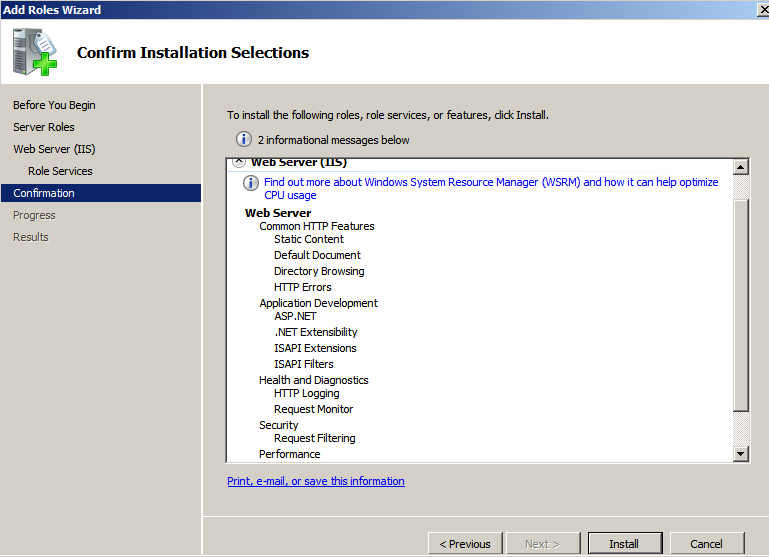
    02. Setup IIS (This is not mandatory but I prefer to have IIS)


    03. Run Visual Studio 2013 Setup. You need to install .Net framework for the setup to run.


    04. Another requirement is IE 11


    05. download from http://windows.microsoft.com/en-us/internet-explorer/ie-11-worldwide-languages


    06. Now you will be able to run the setup and install VS 2013.


    Install any other tools which you think might help in development. Two great tools are

    Microsoft Visual Studio Team Foundation Server 2013 Power Tools
    Productivity Power Tools 2013

    The next step will be to create instance of the base machine and add it to the domain, which I am hoping to explain in few days.

    Tuesday, 25 February 2014

    06. Setup a Build Server - Setup Virtual Environment for TFS 2013 - Using Virtualbox

    
    In this step of Setup Virtual Environment for TFS 2013 - Using Virtualbox, I will explain how to setup a build server for TFS.

    01. First setup an account in PDC as TFS build service


    02. Set up a new virtual machine in Oracle Virtual Box for TFS Build server. Set network to isolated internal network.


    03. Change the machine name,, set IP and add to domain.


    04. Select restart later and add TFA Admin account to local administrators group.


    05. Restart the machine and login as TFS Admin.


    06. Enable File and Printer sharing for the domain, to allow network access.


    07. Run mmc and add Group Policy Object snap in to change local computer policies.


    08. Add build service account for Log on as a service.


    09. Install TFS.


    10. Run build service configuration wizard.


    11. Select the team project collection


    12. If  any issues related to selecting TFS server go to IE options and add tfs root to trusted sites.


    13. TFS server can be connected with added to trusted sites. Select the project collection for the build server.


    14. Set the number of build agents depending on the number of CPU cores.


    15. Set the build service account.


    16. Review and configure.


    17. Close the wizard and  start the build service, controller and agents.


    Oops. Something is wrong. Service starts and stops suddenly. Done some search and really useful info here http://nakedalm.com/tfs-2012-issue-stuck-builds-in-team-foundation-build-with-no-build-number/

    But the issue of multiple site bindings was not an issue for me here. So I did not proceed to set multipleSiteBindingsEnabled to true as specified in the above link.


    18. After hour or two of search in www without any other valid solution just tried ping the TFS server from the build server. Since its shown resolving with IPv6 added below to hosts file.


    19. It did the trick and Build Services are up and running for my TFS environment.


    The next step is to install Visual Studio versions and any other required stuff in build server to support the developments solutions build, which I will not explain here.


    Popular Posts