TFS on premise requires you to keep your TFS updated as almost in every quarter a new update to the TFS is released as well as a new version every year. For this you might have to do TFS Upgrades. If you have upgraded from TFS 2015 to TFS 2018 you have to remove the version 1.xx build agents and configure version 2.xx build agents. Your existing build might encounter workspace issues and may not be able to get sources downloaded to build, in the build agents after the upgrade of agents done. Let’s look at how we can get this issue resolved.
Showing posts with label build agent. Show all posts
Showing posts with label build agent. Show all posts
Sunday, 31 December 2017

Saturday, 30 December 2017
Updating TFS Build Agents from Version 1.xx to 2.xx After TFS Upgrade 2018 from TFS 2015
If you have upgraded the TFS from TFS 2015 to TFS 2018 you will encounter a situation where your vNext build agents 1.xx are no longer valid. You will get a message in the Agent Pool/Queue indicating that the agents are deprecated and you need to migrate them. Let’s understand the steps required to migrate your TFS build agents from 1.xx to 2.xx.
Tuesday, 14 June 2016
Make Builds Run Faster
If your TFS builds are running too slow following might help, to reduce the time taken.

1. Set the build to enable parallel running and use multiple MSBuild processes say 4 processes. /m:4 /p:BuildInParallel=true
Setting /m /p:BuildInParallel=true is better to let the number of MSBuild instances auto decide depending on build agent capability. More info http://www.hanselman.com/blog/FasterBuildsWithMSBuildUsingParallelBuildsAndMulticoreCPUs.aspx
With this set, the build server (agent) is still taking considerable time, and build only reduced by by maximum 5 minutes. In the build agent noticed Antimalware protection is running, taking lot of CPU, while the build is going on.

2. In build agent windows defender or Endpoint Protection, exclude build agent installed folder and build working directories form scanning.

This gives a good performance boost to the builds.

Monday, 6 June 2016
Configure Multiple Build/Release Agents in Single Build Machine–TFS 2015
To configure multiple TFS 2015 new build agents, in single build machine, follow the instructions below. It is recommended to limit the number of agents, in a build machine, to number of CPU cores it has.

Create folder structure for build agents, in the build machine something similar to below.

Download agent.zip from TFS Control panel, Agent pools tab.


Extract agent zip to each agent folder created for build agents.


Create agent working directories for each agent.

Run ConfigureAgent.cmd in each build agent directory and configure build agents.


Wednesday, 4 May 2016
Configure On-Prem Agent for Visual Studio Team Services
To configure an on premise agent for VS Team Services, follow the steps specified below.
Navigate to VS Team Services admin mode, and go to control panel. select the Agent Pool tab.

To setup a new pool for On Premise agents click New pool. Provide appropriate


Go to the on premise machine and navigate to VS Team services Control Panel Agent pools tab. Click on Download agent.


Extract the downloaded zip file.

Run a command prompt as Administrator, execute ConfigureAgent.cmd

Provide a name for agent, VS Team Services url, agent pool and a local working directory.

A popup will ask for the credentials for the VS Team Services account. Once provided agent will be configured.


In the DefaultCollection Agent queues tab you can see the on premise agent availability. It is visible on Agent pools tab as well.


In a build definition you can set new agent pool.


azureps above is demand for azure powershell. Agent version should be greater than 1.87. You can setup Azure PowerShell in your agent and then add the capability to agent. This then can be used as a demand in build or release definition.

Wednesday, 1 July 2015
Setup TFS 2015 Windows Build Agent
With TFS 2015 ( RC is available as of now) new build system is introduced. Below is a guide to setup an agent for the new build system.
To download the build agent setup files go to admin mode of the TFS web portal and download the agent.

Extract the contents of the downloaded zip file, to a folder in the machine which is going to be setup as the build agent.

Open a powershell window as administrator and change directory to the extracted folder. Run the ConfigureAgent.ps1. Provide below details for the agent.
* Agent Name
* TFS URL - This should be TFS Server url, not project collection url.
* Specify an agent pool to join.
* Specify a working folder path. Which will be used to download source code and run the builds
* Set the build agent to run as a widows service. Windows service is the better option for production usage.
* Specify credentials for agent service.
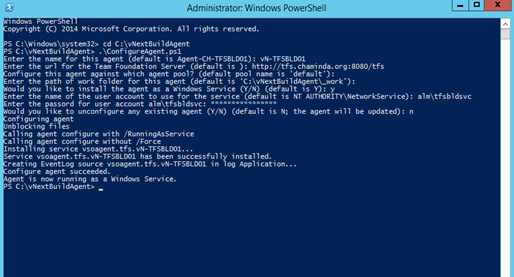
Once this is done the agent service can be seen up and running as a windows service.

The new build agent is available for the build agent pool.

The new windows build agent and XAML build agent can coexist in the same machine, which would useful to support already available XAML build definitions.


To download the build agent setup files go to admin mode of the TFS web portal and download the agent.

Extract the contents of the downloaded zip file, to a folder in the machine which is going to be setup as the build agent.

Open a powershell window as administrator and change directory to the extracted folder. Run the ConfigureAgent.ps1. Provide below details for the agent.
* Agent Name
* TFS URL - This should be TFS Server url, not project collection url.
* Specify an agent pool to join.
* Specify a working folder path. Which will be used to download source code and run the builds
* Set the build agent to run as a widows service. Windows service is the better option for production usage.
* Specify credentials for agent service.

Once this is done the agent service can be seen up and running as a windows service.

The new build agent is available for the build agent pool.

The new windows build agent and XAML build agent can coexist in the same machine, which would useful to support already available XAML build definitions.


Thursday, 24 April 2014
Resolve "Run On Agent (reserved build agent ) Cannot create unknown type '{clr-namespace:" for TFS Custom Build Templates
Today I came across a strange error. I have a custom build template which manipulates assembly version and was running for long time without issues. Today when I try to use this on a newly provisioned build server I came across below error
Run On Agent (reserved build agent BLDSVR - Agent1)
Cannot create unknown type '{clr-namespace:MyCustomActivityNamespace;assembly=MyCutomActivityAssembly}MyCodeActivity'.


This Template was used for so many builds/projects in this collection so I was 100% ++ sure this is nothing wrong with my template or custom activities. Few minutes trial and error, I searched in www.. and Wow ! this was exactly my issue... Cannot create unknown type clr-namespace: ONLY on one “TFS build agent” and really thankful to Jupaol for sharing his experience. He saved my day and by spending almost his day figuring out his similar issue. Yeah..it was just a restart of the problematic build agent build service.

My custom template successfully builds the application now with the build server after restarting the build service.

This is awesome lesson...restart and try if something strange with MS windows from good old days :)
This error could be because of your mistakes as well, for example have a look at Stuck on “Cannot create unknown type {clr-namespace:” in TFS Build?
Run On Agent (reserved build agent BLDSVR - Agent1)
Cannot create unknown type '{clr-namespace:MyCustomActivityNamespace;assembly=MyCutomActivityAssembly}MyCodeActivity'.
This Template was used for so many builds/projects in this collection so I was 100% ++ sure this is nothing wrong with my template or custom activities. Few minutes trial and error, I searched in www.. and Wow ! this was exactly my issue... Cannot create unknown type clr-namespace: ONLY on one “TFS build agent” and really thankful to Jupaol for sharing his experience. He saved my day and by spending almost his day figuring out his similar issue. Yeah..it was just a restart of the problematic build agent build service.
My custom template successfully builds the application now with the build server after restarting the build service.
This is awesome lesson...restart and try if something strange with MS windows from good old days :)
This error could be because of your mistakes as well, for example have a look at Stuck on “Cannot create unknown type {clr-namespace:” in TFS Build?
Subscribe to:
Posts (Atom)
Popular Posts
-
 Can a Coded UI test executed with a Console Application? Yes it is possible. I am going to explain how it can be done. I am going to exec...
-
 The hosts file in /etc/hosts is allowing the WSL distros to map IP addresses to domain names before going to domain name servers, similar...
-
 Sometimes it takes long time to copy files from drop folder to the lab environment when you have your lab environment in different locations...
-
You might encounter compilation error in Visual Studio 2015 when a new .NET Core 1 web app is created, if you have installed Visual Studio 2...
-
This extension “ Chamindac.vsts.release.task.download-artifacts ” for VSTS and TFS 2015.2.1 upwards, can be used to filter for build artifac...

