Thursday, 11 July 2013

MSF Agile - Bug WIT - Adding to Backlog with State New

We do not get Bug work item in Backlog for MSF Agile process template. But it is a good idea to have it on the backlog, since the team then will know there are more work to be done. With VS Scrum template we have this as default option.

If we only add the Bug work item to the Backlog, again it becomes a bit of a issue. Why? Because in MSF agile template the initial State of Bug work item is Active. So there will be lot of Active bugs in the board and unassigned..looks bad..isn't it?
What if we introduce a new State to Bug, as "New", and make the Bug to have New, Active, Resolve, Close (4 States) rather than having Active, Resolve, Close (3 States).

OK, lets do it step by step for a team project and see how it goes.

1. First we have to have TFS power tools for VS 2012 update 2 installed to get the customizations done. http://visualstudiogallery.msdn.microsoft.com/b1ef7eb2-e084-4cb8-9bc7-06c3bad9148f

2. Export Bug Work item as below.


2. Open Bug work item template.


3. Choose file saved in step 1


4. In power tools process template editor you can do the modification to add new state for the Bug work item workflow easily using the GUI.


a) Bug work item state transition  - MSF Agile default


b) Add new State "New"
c) Easy to modify in GUI


d) But easier to open the Bug.xml file in notepad and edit as per below.

  •      Add new State "New"


  • Remove "" to Active Transition and add the Transitions as below


e) When above changes done, save it as BugModified.xml. Open it in Process template editor, and you should see the new state transition workflow like this.


 f) Now import the  BugModified.xml to the team project using power tools. (Process Editor --> Work Item Types -- > Import WIT)

h) Make sure to add verify fields "Story Points" (Size of Bug - Similar to User Story Size) and "Stack Rank" (to prioritize the backlog items) available in the bug WIT. If not available add them.


 5. Now the Bug work item has new State "New"


6. Now we have to do some modifications to categories, and common config to get the Bug into backlog and to meke sure drag and drops work in Board.

7. Open command prompt in TFS server and  change directory (to use witadmin) using

cd C:\Program Files (x86)\Microsoft Visual Studio 11.0\Common7\IDE

8. Execute below command with correct collection and team project name

witadmin exportcategories /collection:http://localhost:8080/tfs/defaultcollection /p:Demo.MSFAgileModified /f:"C:\temp\Categories.xml"

9. Open Categories.xml notepad and add the text in green box in the Requirement Category and save the as CategoriesModified.xml


 10. Execute below command to get CommonProcessConfig.xml

witadmin exportcommonprocessconfig /collection:http://localhost:8080/tfs/defaultcollection /p:Demo.MSFAgileModified /f:"C:\temp\CommonProcessConfig.xml"

Change as below (add green box text to bug category) and save the file as CommonProcessConfigModified.xml


11. Now import the two modified xmls using below two commands


witadmin importcategories /collection:http://localhost:8080/tfs/defaultcollection /p:Demo.MSFAgileModified /f:"C:\temp\CategoriesModified.xml"

witadmin importcommonprocessconfig /collection:http://localhost:8080/tfs/defaultcollection /p:Demo.MSFAgileModified /f:"C:\temp\CommonProcessConfigModified.xml"

12. Check the backlog and all now the bugs appear in the backlog


13. When click on board .. err.. :(


14. Before our imports Column Options in the Board looked like


 15. But now


 16. The fix


 17. Great.. the Board is back in operation


18. State transition with drag drop works fine...


If this was done on TFS 2013 preview... Bug would have a different color theme as well..


Wednesday, 10 July 2013

TFS 2013 - Team Rooms

Another exciting feature that would come with TFS 2013, is Team Rooms for Team collaboration. It is already available in Team Foundation Service even though it is not 100% working (of course as expected in a preview).

This will be one of new features added to Team Web Access for team collaboration. Team members can create separate rooms - say Developer Room, QA Room, Common Room etc for their team project. team members can chat on the rooms, include hyperlinks to work items (with #WorkitemId like #7050). Events can be configured to appear in the rooms, based on different events that may happen as the project activities go on. For example when a code review requested or  even when work item changed you can configure to create an event in the room.

Here are few screen shots taken from Team Foundation Service for you to have a glimpse on what is going to come as Team Rooms with TFS 2013.

1. Entry point to team rooms as of now.


2. Have a chat


3.Create a new room


4. Add members to the room


5. Manage events in the room


For further details refer http://msdn.microsoft.com/en-us/library/vstudio/dn169471(v=vs.120).aspx

Await for more new features with TFS 2013... :)

Tuesday, 9 July 2013

TFS 2013 - Web Access - MSF Agile - Backlog & Board

Lets have a quick look at few cool stuff that will be available with TFS 2013 in MSF Agile Template. With this release Microsoft added Feature work item representing a Feature that is implemented with many user stories. They have made the Backlog and the Board appearance consistent across Web Access Work tab.

Vertical color bars to denote different types of work items, giving a great look to the Board and the Backlog.

1. Feature Backlog


2. Feature Backlog - with User Stories


 3. Feature Backlog - with User Stories & Tasks


4. Ease of Access

5. Feature Board


6. Stories


7. Stories to Features


8. Stories to Tasks


9. Stories Board


10. Iteration Backlog


11. Iteration Board - Grouped by Stories


12. Iteration Board - Grouped byPeople


13. Queries

 Cool stuff...greater consistency...and await for more... as I explore in the coming weeks...

Sunday, 7 July 2013

Tips on Install TFS 2012

Here are few quick tips on installing and configuring Team Foundation Server 2012 with SharePoint Foundation 2013 and SQL Server 2012.

This tips are valid for Windows Server 2008 R2 SP1 and Windows Server 2012.

1. Install OS and add you server to domain.
2. Make sure you have following accounts ready.
 
  • TFS Admin - This should be a domain user account who is installing configuring and administering the TFS server.  Add this user to the administrator group of your TFS server.
  • TFS Service -TFS Service account. This account must have the Log on as a service permission.
  • TFS Build - This account must have the Log on as a service permission. 
  • TFS Sharepoint Service - Service Account For SharePoint
  • TFS Sql Service - Sql Service Account for TFS.
  • TFS Reports - Report Reader account for TFS. This account must have allow log on locally permission.
For further details on service accounts refer  http://msdn.microsoft.com/en-us/library/ms253149.aspx

3. Grant log on as Service and allow log on locally permissions by

  • Point to Control Panel, point to Administrative Tools, and then double-click Local Security Policy. 
  • In the console tree, double-click Local Policies, and then click User Rights Assignment.
  •  In the details pane, double-click Log on as a service/Allow log on locally.
  • Click Add User or Group, and then add the appropriate account to the list of accounts that possess the Log on as a service/Allow log on locally right.
5. Install SQL server 2012 and provide the service account as  TFS Sql Service
  •  Make sure to install reporting services in native mode as well since it is much easier to do that way.
6. Install SharePoint Foundation 2013.

7. Install TFS 2012 and configure using Advance Configuration. It is easier to select correct DB server, SharePoint, reporting services with advance wizard. Make sure the account you created for TFS Service and Report reader accounts are used in appropriate steps.

Wednesday, 12 June 2013

TFS 2012 Email Alerts with Gmail Account

In my recent ALM session @ .Net user group, Sri Lanka, there were few queries on setting up TFS email with a Gmail account. For those folks and all others who would like to setup email alerts with a gmail account, there are two simple steps to do.

1. Enable POP in Gmail.
 Goto --> Your Gmail account --> Settings --> Forwarding and POP/IMAP and set the settings as below. (Set to enable POP for emails from now on and after save you should see POP is enabled)


2.Setup Gmail account settings as Email Alert settings in TFS 2012.

Open Team Foundation Administration Console --> Application Tier --> Alert Setting

and set the settings as below example. It should be your Gmail account and password :)


And now all is setup and your TFS users can subscribe for alerts in TFS 2012 and will get an email from your TFS Gmail account that you set in above.

Wednesday, 8 May 2013

Why CI Build

There is lot of talk on CI builds nowadays. Have you ever thought why it has become a hot topic? Or is it really important? What is the benefit of it? OK to answer all above I will take you through a very simple demo with even simpler sample.

For simplicity let's say we only have two developers in our team. The Developer A and the Developer B. They both are working on a windows forms application referring to a class library from that.


Our Developer A starts development and he creates a method "GetWelcomeMessage" in Class1. Then he uses it in his Form1 he is developing in the Windows Application.


Developer A compiles this code successfully and checks-in the Class1 and Form1. Now the source control server (TFS) has the files as below.


Now our Developer B takes the latest version from source control server and he adds another form, Form2 and use the method developed by Developer A.


Developer B compiles his code successfully in his development PC and checks-in the code. Now the server copy will be like below.


The source control server (TFS) now have the code checked-in by both Developer A and Developer B. This source code is valid and compiles without any issue if latest version is downloaded to any of the developers' PCs.

Now our Developer A becomes a little bit lazy next day morning and do not bother to get the latest version from the server. So he still has only Form1 and the Class1 in his solution.


Developer A starts modifying code from yesterday WITHOUT getting the latest version from source control server. He changes Class1 "GetWelcomeMessage" method to accept a parameter (username) and include that in the return message. Then he modifies the Form1 method call to Class1."GetWelcomeMessage" to send the username.

The Developer A compiles the code in his development PC, and it looks good and compiles successfully. Developer A checks-in the modified Class1 and Form1 code to the source control server(TFS).

Now what is the status of the code in source control server. The Developer A has checked-in set of changes which is causing build errors in the solutions latest copy in the source control server.


Now if developer A or B download the latest version from source control server, none of them will be able to compile the solution. If both of them lazy enough to not to get the latest version, they will keep on developing and adding new files for their respective tasks without knowing about the errors in the latest copy of the solution. May be they will discover this just before, when they try to release to QA.

Wouldn't it be nice to have someone who compiles the source code checked-in to the Source Control Server (TFS) and alert the two Developers A,B about the broken build status, and the changes that caused the build break.

Exactly that is the job of a CI build in TFS world. CI build will build the Source Control Server version of the source code for each checked-in, change-set and alert if there is any build failures. This will give lot of benefit to the developers to easily identify the issue in the build by detecting the change-set caused the build break.

In my next post I will explain how to setup a CI build , for a solution with TFS 2012 & VS 2012.

Wednesday, 17 April 2013

Code Review with TFS 2012 and VS 2012

Let's have a look at another cool feature comes along with VS 2012 and TFS 2012. There is traceability and visibility of entire code review process with this new feature. It is very easy to use as well.

I will explain everything related to  code reviews with a very simple example. I have simple button click which assigns a text to a text box in my form. I want my supervisor to do a code review on this great implementation that I have done before I check in my source code. So I got to Team Explorer --> My Work and request a code review.

I can choose who would do the code review.It can be more than one person. I enter a title for the code review and a description if I want.  When I submit my request VS 2012 associates all code files I have changed or newly added (my all pending changes) to the code review request. Behind the scene what happens is my pending changes are shelved and that shelve-set is associated automatically to the Core Review Request TFS work item.


It is possible to submit already checked in change-set to code review as well. Simply right click on change-set and request a code review.


The supervisor(s) will see the code review request on his My Work. He has the
option to accept or decline the request.


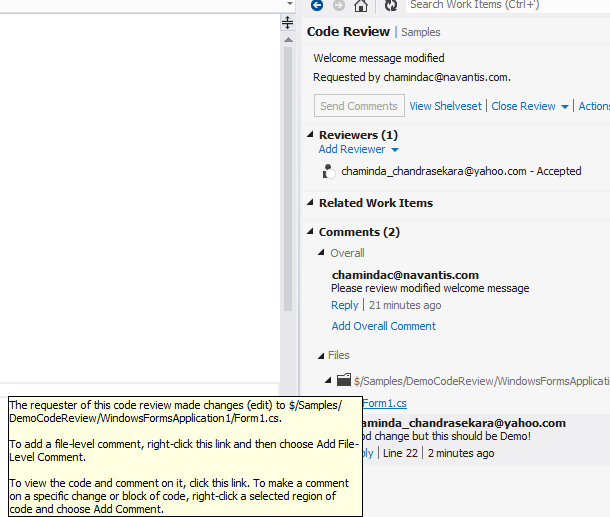
Reviewer can view the changes done and can comment  as overall comment or comment on files or even add comment highlighting the code sections.


Reviewer can mark each individual file as reviewed to keep track of his own activities.


 He can add comments and save them. The comments will only be seen by the other party when he send them.


Once reviewer send the code review comment or finishes the code review I can see it in My Work and close the code review request.


I can do changes on my supervisors recommendations and mark them as done to keep track, and create a new code review request if I want. This time my old code review is automatically linked with new code review. Like all other work items in TFS world, history is recorded for Code Reviews and you can review your code reviews.

Great stuff..isn't it? VS 2012/ TFS 2012 rocks with these new cool features.


Popular Posts