Monday, 22 July 2013

MTM - Enable Screen Capture for Testing

There is build in screen capture capability coming with MTM/VS 2012. It is another cool feature giving great input for the developers when they try to reproduce the bugs. Simply you do not have to complain as developers, that I cannot reproduce in my machine, because I am not sure what the QA has done. Now you can see each of the actions QA performed for testing.

Lets look at how to enable the screen capturing in MTM (Microsoft Test Manager).

First you have to open MTM and connect to a test plan.


Then go to plan properties and create new test settings or you can modify an existing setting


Give a name to settings


Set roles


Go to Data and Diagnostics and enable Screen and Voice Recording


You can set additional options by  clicking on configure


That it and you are done.


Now when you run tests with the test plan screen recording will start automatically.


When you create a bug it captured video will be added to the bug, and the action recording will give more info. as well.


The Bug now has a link to the captured video of the test actions performed.


You can play the video in a media player.


Thursday, 11 July 2013

MSF Agile - Bug WIT - Adding to Backlog with State New

We do not get Bug work item in Backlog for MSF Agile process template. But it is a good idea to have it on the backlog, since the team then will know there are more work to be done. With VS Scrum template we have this as default option.

If we only add the Bug work item to the Backlog, again it becomes a bit of a issue. Why? Because in MSF agile template the initial State of Bug work item is Active. So there will be lot of Active bugs in the board and unassigned..looks bad..isn't it?
What if we introduce a new State to Bug, as "New", and make the Bug to have New, Active, Resolve, Close (4 States) rather than having Active, Resolve, Close (3 States).

OK, lets do it step by step for a team project and see how it goes.

1. First we have to have TFS power tools for VS 2012 update 2 installed to get the customizations done. http://visualstudiogallery.msdn.microsoft.com/b1ef7eb2-e084-4cb8-9bc7-06c3bad9148f

2. Export Bug Work item as below.


2. Open Bug work item template.


3. Choose file saved in step 1


4. In power tools process template editor you can do the modification to add new state for the Bug work item workflow easily using the GUI.


a) Bug work item state transition  - MSF Agile default


b) Add new State "New"
c) Easy to modify in GUI


d) But easier to open the Bug.xml file in notepad and edit as per below.

  •      Add new State "New"


  • Remove "" to Active Transition and add the Transitions as below


e) When above changes done, save it as BugModified.xml. Open it in Process template editor, and you should see the new state transition workflow like this.


 f) Now import the  BugModified.xml to the team project using power tools. (Process Editor --> Work Item Types -- > Import WIT)

h) Make sure to add verify fields "Story Points" (Size of Bug - Similar to User Story Size) and "Stack Rank" (to prioritize the backlog items) available in the bug WIT. If not available add them.


 5. Now the Bug work item has new State "New"


6. Now we have to do some modifications to categories, and common config to get the Bug into backlog and to meke sure drag and drops work in Board.

7. Open command prompt in TFS server and  change directory (to use witadmin) using

cd C:\Program Files (x86)\Microsoft Visual Studio 11.0\Common7\IDE

8. Execute below command with correct collection and team project name

witadmin exportcategories /collection:http://localhost:8080/tfs/defaultcollection /p:Demo.MSFAgileModified /f:"C:\temp\Categories.xml"

9. Open Categories.xml notepad and add the text in green box in the Requirement Category and save the as CategoriesModified.xml


 10. Execute below command to get CommonProcessConfig.xml

witadmin exportcommonprocessconfig /collection:http://localhost:8080/tfs/defaultcollection /p:Demo.MSFAgileModified /f:"C:\temp\CommonProcessConfig.xml"

Change as below (add green box text to bug category) and save the file as CommonProcessConfigModified.xml
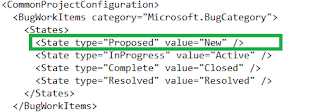


11. Now import the two modified xmls using below two commands


witadmin importcategories /collection:http://localhost:8080/tfs/defaultcollection /p:Demo.MSFAgileModified /f:"C:\temp\CategoriesModified.xml"

witadmin importcommonprocessconfig /collection:http://localhost:8080/tfs/defaultcollection /p:Demo.MSFAgileModified /f:"C:\temp\CommonProcessConfigModified.xml"

12. Check the backlog and all now the bugs appear in the backlog


13. When click on board .. err.. :(


14. Before our imports Column Options in the Board looked like


 15. But now


 16. The fix


 17. Great.. the Board is back in operation


18. State transition with drag drop works fine...


If this was done on TFS 2013 preview... Bug would have a different color theme as well..

Wednesday, 10 July 2013

TFS 2013 - Team Rooms

Another exciting feature that would come with TFS 2013, is Team Rooms for Team collaboration. It is already available in Team Foundation Service even though it is not 100% working (of course as expected in a preview).

This will be one of new features added to Team Web Access for team collaboration. Team members can create separate rooms - say Developer Room, QA Room, Common Room etc for their team project. team members can chat on the rooms, include hyperlinks to work items (with #WorkitemId like #7050). Events can be configured to appear in the rooms, based on different events that may happen as the project activities go on. For example when a code review requested or  even when work item changed you can configure to create an event in the room.

Here are few screen shots taken from Team Foundation Service for you to have a glimpse on what is going to come as Team Rooms with TFS 2013.

1. Entry point to team rooms as of now.


2. Have a chat


3.Create a new room


4. Add members to the room


5. Manage events in the room


For further details refer http://msdn.microsoft.com/en-us/library/vstudio/dn169471(v=vs.120).aspx

Await for more new features with TFS 2013... :)

Tuesday, 9 July 2013

TFS 2013 - Web Access - MSF Agile - Backlog & Board

Lets have a quick look at few cool stuff that will be available with TFS 2013 in MSF Agile Template. With this release Microsoft added Feature work item representing a Feature that is implemented with many user stories. They have made the Backlog and the Board appearance consistent across Web Access Work tab.

Vertical color bars to denote different types of work items, giving a great look to the Board and the Backlog.

1. Feature Backlog


2. Feature Backlog - with User Stories


 3. Feature Backlog - with User Stories & Tasks


4. Ease of Access

5. Feature Board


6. Stories


7. Stories to Features


8. Stories to Tasks


9. Stories Board


10. Iteration Backlog


11. Iteration Board - Grouped by Stories


12. Iteration Board - Grouped byPeople


13. Queries

 Cool stuff...greater consistency...and await for more... as I explore in the coming weeks...

Sunday, 7 July 2013

Tips on Install TFS 2012

Here are few quick tips on installing and configuring Team Foundation Server 2012 with SharePoint Foundation 2013 and SQL Server 2012.

This tips are valid for Windows Server 2008 R2 SP1 and Windows Server 2012.

1. Install OS and add you server to domain.
2. Make sure you have following accounts ready.
 
  • TFS Admin - This should be a domain user account who is installing configuring and administering the TFS server.  Add this user to the administrator group of your TFS server.
  • TFS Service -TFS Service account. This account must have the Log on as a service permission.
  • TFS Build - This account must have the Log on as a service permission. 
  • TFS Sharepoint Service - Service Account For SharePoint
  • TFS Sql Service - Sql Service Account for TFS.
  • TFS Reports - Report Reader account for TFS. This account must have allow log on locally permission.
For further details on service accounts refer  http://msdn.microsoft.com/en-us/library/ms253149.aspx

3. Grant log on as Service and allow log on locally permissions by

  • Point to Control Panel, point to Administrative Tools, and then double-click Local Security Policy
  • In the console tree, double-click Local Policies, and then click User Rights Assignment.
  •  In the details pane, double-click Log on as a service/Allow log on locally.
  • Click Add User or Group, and then add the appropriate account to the list of accounts that possess the Log on as a service/Allow log on locally right.
5. Install SQL server 2012 and provide the service account as  TFS Sql Service
  •  Make sure to install reporting services in native mode as well since it is much easier to do that way.
6. Install SharePoint Foundation 2013.

7. Install TFS 2012 and configure using Advance Configuration. It is easier to select correct DB server, SharePoint, reporting services with advance wizard. Make sure the account you created for TFS Service and Report reader accounts are used in appropriate steps.

Wednesday, 12 June 2013

TFS 2012 Email Alerts with Gmail Account

In my recent ALM session @ .Net user group, Sri Lanka, there were few queries on setting up TFS email with a Gmail account. For those folks and all others who would like to setup email alerts with a gmail account, there are two simple steps to do.

1. Enable POP in Gmail.
 Goto --> Your Gmail account --> Settings --> Forwarding and POP/IMAP and set the settings as below. (Set to enable POP for emails from now on and after save you should see POP is enabled)


2.Setup Gmail account settings as Email Alert settings in TFS 2012.

Open Team Foundation Administration Console --> Application Tier --> Alert Setting

and set the settings as below example. It should be your Gmail account and password :)


And now all is setup and your TFS users can subscribe for alerts in TFS 2012 and will get an email from your TFS Gmail account that you set in above.

Popular Posts
