Friday, 13 September 2013

TFS 2012 - Build/Release Notes with Community TFS Build Manager

Community TFS Build Manager is really useful add-on to VS 2010/2012/2013 to  create Build/Release Notes automatically.

You can download this free from Visual Studio Gallery  and this project source code can be found here at codeplex if you want to further customize.

Once you install Community TFS Build Manager you can see a new link appear in VS Team Explorer as below.


Launch this tool and select the builds.


Right click on the build which you want to generate a release note, and click on "Experimental Build Note".


Set the necessary information.


Click "Generate" and there you go...


Awesome. Isn't it?

For information on getting the necessary changesets associated to a build see my post TFS 2012 - Get a Release Build With Changesets Associated From a Given Changeset

Tuesday, 10 September 2013

TFS 2012 - Get a Release Build With Changesets Associated From a Given Changeset

If you have created a new release build definition with TFS for an application that is already in Production (which is deployed to production without a TFS build), you may want to do the next release build with changesets associated from a given changeset (from the last changeset delivered to Production).

To make it clear have a look at below source control history in my demo app. My changeset 87 has already gone into Production. Now I am creating a new TFS release build definition and when I queue a build in this release build I want it to get associated with chagesets 93 to 97.


If  I queue a build with will build for latest sources in the TFS and no changesets get associated to the build.


To get my changesets 93 to 97 associated to build first I need to build for changeset  87. Then I can build for latest solution and it will associate from 93 to 97.

I can specify the changeset to build by advance options "Get Version" when I queue a build like below.


 Now when I queue the build it builds for changeset 87.


Now I queue another build with not specifying a changeset. This will build the latest sources


This build will associate the changesets from 93 to 97 as I expected


If it is necessary I can repeat the same steps to do another build from this definition to associate set of changesets that I would like to associate with it.

I will explain how to generate a Build Note with TFS build in my next post.

There are few types of parameters that can be send to "Get Version" of advanced options of queuing build. For details check http://msdn.microsoft.com/en-us/library/gg490833.aspx#VersionSpecs

Wednesday, 4 September 2013

TFS 2013 - Team Explorer - Undock Pending Changes & Build windows

A much awaited capability to have "Pending Changes" window outside of the Team Explorer, like what we had in VS 2010, is added by MS in TFS 2013 Team Explorer (and in VS 2013). This will be a very good news for the developers who did not like the pending changes inside team explorer in VS 2012. (Including me as a matter of fact).

Cool thing about this is anybody who wants "Pending Changes" inside Team explorer, like in VS 2012, still can have it. People like me can switch it to a separate window.

Let me show you how to do this "Undock" of "Pending Changes" window from team explorer.

1. You can get "Pending Changes" window inside Team Explorer by clicking Pending Changes in Team Explorer Home.


2. Click on the top right hand side arrow as shown below.


3. There you go... now your Pending Changes appear as a separate window, you can dock it in VS as you like and unpin,pin works as all other windows.


4. If you hide it it will appear in the position you dock it in VS. You have the option to dock it back in Team Explorer by clicking the menu option or by closing the Pending Changes window.


5. Same behavior exists for Build explorer window as well.

Sunday, 18 August 2013

ALM - Productivity Enhancements - VS 2013 Peek Definition (Enhanced "Go To Definition")

How many time you lost the code segment you were looking at, when try to "Go To Definition" (F12) few time with VS Text Editor (Code Window)? Upcoming VS 2013 going to have a great feature enabling us much more..and a BIG thank must go to MS for giving us this cool..great feature called "Peek Definition" (Alt+F12).

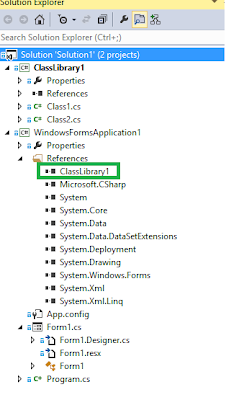
To explain what it is, I am going to use a very simple and doing nothing application. The application contains Class Library and Window Form app which is referring the class library.


Class Library has two classes, Class1 and Class2. The Class1 has a method "GeMgs" calling "GetMessage" method in Class2.


The windows application button click event is calling Class1 "GetMgs" method.


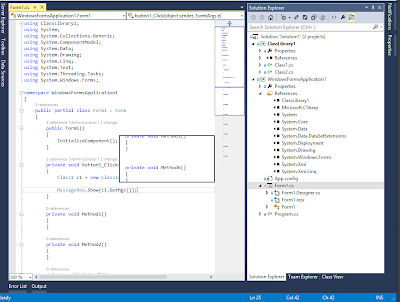
Lets close all other code windows except the code window of Form1 which is having the button click event. Click on GetMsgs method and press "Alt+F12". New feature "Peek Definition" is in action and you can see you current code shifts down and the Class1, "GetMgs" appears in a preview window.


Can we peek definition inside preview window opened? Yes we can. Let's click on "GetMessage" and press "Alt+F12".


Class2 "GetMessage" appears in preview window and you can see navigation buttons also appear in the window.


By clicking navigation buttons you can navigate back and forth.


Great, isn't it?


Awesome !!! The enhanced scroll bar preview, I explained in my previous post, even works inside the Peek Definition preview window.


Amazing thing about this new feature is that we have not gone out of the code segment we were originally in. In this instance we are still in the Form1 button click, and once you hit "ESC" (escape) button Peek Definition preview window will disappear.

Full list of keyboard shortcuts of Peek Definition feature  and more information available at http://msdn.microsoft.com/en-us/library/vstudio/dn160178%28v=vs.120%29.aspx

Await for more productivity enhancements in VS 2013.. and enjoy coding with VS 2013..

Thursday, 15 August 2013

ALM - Productivity Enhancements - VS 2013 Enhanced Scrollbar

Enhanced Scroll bar is simple, but very useful feature included in upcoming VS 2013. Lets have a look what we can do with this.

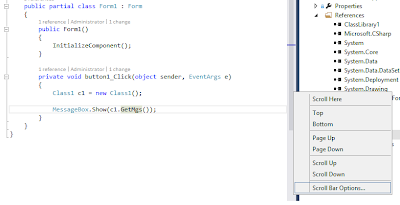
To enable this feature you can right click on the scroll bar of the text editor -- > Select Scroll Bar Options.


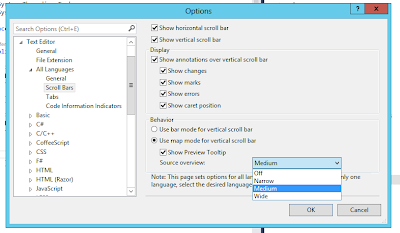
You will get the below window where you can set the options as per your preference.
 

Once you enable Medium or Wide mode you can see the break points, bookmarks and lot of other information.

You can preview the areas of code that is not visible using the preview tool tip option by moving your mouse over the scroll bar.


Once you click on scroll bar you will be navigate to the code you previewed. Still you can see the cursor position in original place you left as in below image.


Once you click on code the cursor position correctly indicated in scroll bar.


Explore more with enabling and disabling options in Scroll Bar Options window... and enjoy VS 2013...

Wednesday, 7 August 2013

TFS 2012 - Voluntary Feedback with Feedback Client

Providing feedback (response) for the feedback requests is the most commonly known way of using TFS 2012 Feedback Client. I will explain another use of feedback client which gives option to provide feedback without a feedback request. This will be really useful if you want suggestions from Client, QA members or even from Developers, not to be logged as Bug work Items. You have option to provide them as voluntary feedback response and later analyze and act upon them.

If you need more fields to capture additional data to record suggestions, of course you can customize the Feedback Response work item type.

Lets see how we can use TFS Feedback Response as voluntary feedback.

Once you download (http://www.microsoft.com/en-us/download/details.aspx?id=30660) and install TFS 2012 Feedback Client you can launch it as shown in below image.


 Select the Team Project


You can see the feedback client launched


Provide the Title and any comments for the feedback. You can capture the desktop activities including voice, screenshots or other attachments.


Once the feedback is submitted you can view it in Web Access or Visual Studio.


You can download and view added screenshots.

Play the video file.


You can see more information on the below blog posts, they are really useful information.

http://blogs.msdn.com/b/slange/archive/2012/08/02/vs-2012-alm-tidbits-the-feedback-client-s-two-modes.aspx

http://blogs.msdn.com/b/slange/archive/2012/08/03/vs-tfs-2012-tidbits-when-to-use-the-feedback-client.aspx


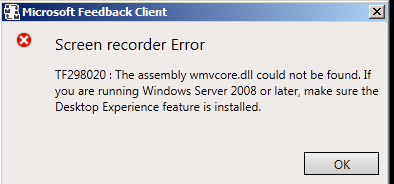
You may come across below error when try to capture screen on windows 2008 or 2012 server.


Follow the below steps to fix the issue.

1. Open Server Manager


2. Add Features and select Desktop Experience and other required components


3. Install the feature


4. Restart and you are good to go


Monday, 5 August 2013

TFS 2013 Web Access - Comments on Changesets

You can add comments on changesets/shelvesets in web access, with TFS 2013 preview. This again a very effective way to communicate more information on the changes made in the changeset in addition to the default comment.

It is very simple to add a comment and it is possible for you to modify/delete the comments added on changeset/shelveset. May be this can even be used to do code reviews on changesets.

Let see how to add comments

1. Go to web access Code--> Changesets and open a chageset. you can see comparison view of the code files modified. Highlight a portion of code and click on the small icon appear on left side of code.


2. Type in comments and hit Return key to save.


Any other team member can reply to these comments. Unlike the team room chat this is not recorded as history. If you delete comment it is completely deleted.


Only problem I see with this feature is that you cannot view this outside of Web Access. Simply you cannot see these comments in VS when you view the changeset.

Still it is a cool feature comes with TFS 2013... and await for more...

Popular Posts