You might encounter compilation error in Visual Studio 2015 when a new .NET Core 1 web app is created, if you have installed Visual Studio 2017 (RC as of now). When a new .NET Core 1 web application is created/opened in Visual Studio 2015, with the project template you get with .NET Core 1.0.1 tools Preview 2, while having ".NET Core cross-platform development" for Visual Studio 2017 in your machine, you might see below error prompted.
---------------------------
Microsoft Visual Studio
---------------------------
The following error occurred attempting to run the project model server process (1.0.0-rc4-004771).
Unable to start the process. No executable found matching command "dotnet-projectmodel-server"
The project model server process provides intellisense, build, and reference information to Visual Studio and without it your experience will be very limited. Please try closing and reopening Visual Studio to see if that corrects the problem. Alternatively, check that the .NET Core SDK is properly installed.
---------------------------
OK
---------------------------
When attempt to compile the solution you may encounter a compilation error below.
WebApp.xproj(7,3): error MSB4019: The imported project "C:\Program Files\dotnet\sdk\1.0.0-rc4-004771\Microsoft\VisualStudio\v14.0\DotNet\Microsoft.DotNet.Props" was not found. Confirm that the path in the <Import> declaration is correct, and that the file exists on disk.
Wednesday, 22 February 2017

Monday, 20 February 2017
SonarQube Extension for VSTS/TFS
In the post Setup SonarQube Analysis with TFS Builds usage of Sonar Server with TFS build to measure quality of code is explained. The task catalogue tasks explained in the post Setup SonarQube Analysis with TFS Builds are now deprecated. There is an extension available in marketplace for SonarQube. This extension provide new begin analysis and end analysis tasks to be used in a TFS build.
Once you install the SonarQube extension for VSTS/TFS you can setup service endpoint type of SonarQube.
Once you install the SonarQube extension for VSTS/TFS you can setup service endpoint type of SonarQube.
Wednesday, 1 February 2017
Bulk Editing Work Items in TFS
There was a question from a team member how to bulk edit TFS work items. In the past the only answer to this question would be use excel. Open a query in Excel and update and publish. Is there any other way to achieve this easily without doing one by one work item edit in a query result? Query result opened in Web or in Visual Studio you can edit each work item by clicking on each, and then save bulk of work items. But is it possible to change a value of a field for many work items at once. Let’s look at the bulk edit options available with TFS see the possibilities.
Monday, 30 January 2017
Trigger a Release Based on Build Tag– VS Team Services
Visual Studio Team Services now supports triggering a release, in team services release management, when a defined tag is available in a completed build. This helps you to filter a build or builds, to get deployed via the release pipeline, out of builds that are successfully completed.
For example a build that is tagged as RTM, would trigger a release while another build, completed successfully, but with no tag is not triggering a deployment. In order to say a release should only be triggered with a given tag, it should be defined in the Triggers tab of the release definition.
For example a build that is tagged as RTM, would trigger a release while another build, completed successfully, but with no tag is not triggering a deployment. In order to say a release should only be triggered with a given tag, it should be defined in the Triggers tab of the release definition.
Sunday, 1 January 2017
Resolving “Deployment on this environment was cancelled.”
You might encounter “Deployment on this environment was cancelled.” when you have setup a new build/release agent and try to do a deployment, with on premise TFS. It is a confusing error message and not enough information at all to identify the issue. How to identify where the problem is easier if the agent is on premise. Then you have the ability to look at additional diagnostic logs. Lets look at one example scenario you are getting this error.
Friday, 9 December 2016
Setup SonarQube Analysis with TFS Builds
Setting up a Sonarqube server is explained in the post “Setting Up Sonar Server for TFS”. Sonar analysis helps to identify the technical debt in the source code of your project. Running it integrated with team service or TFS builds add more value by automating the quality checks with sonar server.
To run Sonarqube analysis for a project with TFS follow the steps described below.
To run Sonarqube analysis for a project with TFS follow the steps described below.
Thursday, 1 December 2016
Setting Up Sonar Server for TFS
SonarQube helps to check overall health of your source code.This allows you to write cleaner code and it will improve your code base dramatically. SonarQube is capable of integrating into CI engines and facilitate DevOps by providing code quality measurements. It supports multiple languages and makes it easy for you to detects bugs in your code. Qaulity management of your code bases can be centralized and integration with TFS server and Team services is seamless. Lets look at setting up a SonarQube server to be used with TFS.
Monday, 10 October 2016
Setup Test Farm and Test Clients for Test Execution
Let’s look at steps required for Setup Test Farm, Start and Stop, and Test Clients for Test Execution for setting up a Test Farm as Azure VMs–For TFS2015 Release Management(This is the 05th step) and other four steps are listed below.
Setup to start and stop Resource Group

Use a blob in azure to keep the status of the test client. Once test client done create a text file as done to notify the farm stop environment. This is required since TFS 2015 is not yet able to wait for multiple environments in release management to start its execution. (have a look at Release Management - Deploy based on conditions in multiple environments in here).
Script to do this
Then use a wait script to see if the test environments done in stop environment.
Wait script
Remove blob container script
Log on to to azure VM setting up as agent and create shadow user. add to admin.

http://chamindac.blogspot.com/2016/06/deploying-to-untrusted-domaintfs-2015.html
Machines created with same virtual network, enable file and printer sharing.. since same workgroup all will be accessible Same username password as administrator user.(Even different user would work.). All of the machines are in same workgroup in Azure (refer Create Virtual Machines in Azure for the Test Farm).
Setup the test agent deployment task and test execution task.
Windows file copy task to copy the test binaries to the test execution folder.
Test Run task to run the tests.
Once a test client is done it will be creating a text file in blob container to notify the waiting task monitoring the blob container.
Set environment done script.
When release run you might run into below issue.

This is because PowerShell remoting is not setup for test agent machine. Follow instructions in Enable PowerShell remoting in each test client and verify access from the test farm admin VM in Azure. to setup PowerShell remoting. Create directory in the test client from admin machine to verify.

Still you may run into below issue if you have more than one test client machine.

to verify from the admin machine execute below command
Get-Item WSMan:\localhost\Client\TrustedHosts
Only last machine added to trusted hosts available.
To fix Add all machines (http://stackoverflow.com/questions/21548566/how-to-add-more-than-one-machine-to-the-trusted-hosts-list-using-winrm)
Set-Item WSMan:\localhost\Client\TrustedHosts -Value "do-tf-tc01,do-tf-tc02,do-tf-tc03"

Test agent deployment cannot copy files error
System.AggregateException: Failed to execute the powershell script. Consult the logs below for details of the error.
2016-09-09T06:25:55.6714118Z ##[warning]Failed to connect to the path \\do-tf-tc03 with the user do-tf-tc03\doadmin for copying.System error 53 has occurred.
2016-09-09T06:25:55.6714118Z ##[warning] The network path was not found.
2016-09-09T06:25:55.6714118Z ##[warning]
2016-09-09T06:25:55.6714118Z ##[warning] ---> System.Management.Automation.RuntimeException: Failed to connect to the path \\do-tf-tc03 with the user do-tf-tc03\doadmin for copying.System error 53 has occurred.

Fix by allowing file and printer sharing in test client machine firewall.
Once test agent machine restart this is causing issues.
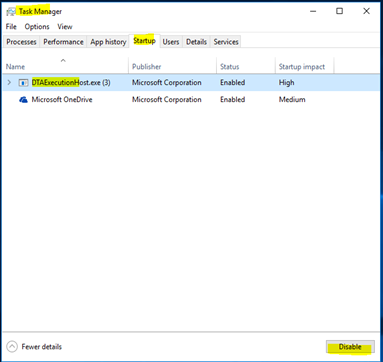
[Window Title]
DTAExecutionHost.exe
[Main Instruction]
DTAExecutionHost.exe has stopped working
[Content]
A problem caused the program to stop working correctly. Windows will close the program and notify you if a solution is available.
[Close program]
Disable to resolve – Not a good fix at all.
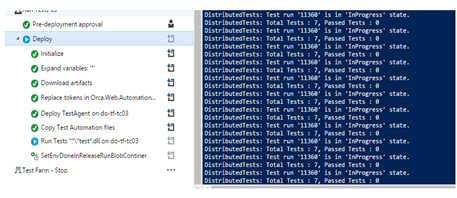
Another problem asking for login while trying to execute tests

To resolve
Setup a local account in Test Client and in TFS AT say tfstestsvcshadow. (This is used as the service account for Test Agent.

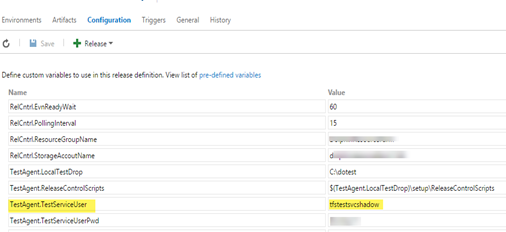
Add this user to team project collection test service account.
This resolves DTAExecution startup error as well. Enable the disabled DTAExecution in startup.
With this you will be able to execute the tests.
![[image%255B41%255D.png]](https://blogger.googleusercontent.com/img/b/R29vZ2xl/AVvXsEhXtAZBZPsPAWEoxymzTD3gbUT8A6tyGHNVV8UTNn_XZ-tdKt0telBrfFcA15Yyt0i7BP42cqNz0vk4z6LGhLExwu2aWJV4A2NiJECputwCK7Uv_-6Pjqi2b4-xEk5hS9jqp4FpKBv4UhdK/s1600/image%25255B41%25255D.png)
Look at Test Farm as Azure VMs–For TFS2015 Release Management to see how this is running.
- Create Virtual Network in Azure
- Create Virtual Machines in Azure for the Test Farm.
- Setup release agents in the admin machine in Azure, to use with each test client following instructions in here.
- Enable PowerShell remoting in each test client and verify access from the test farm admin VM in Azure.
Setup to start and stop Resource Group


Use a blob in azure to keep the status of the test client. Once test client done create a text file as done to notify the farm stop environment. This is required since TFS 2015 is not yet able to wait for multiple environments in release management to start its execution. (have a look at Release Management - Deploy based on conditions in multiple environments in here).

Script to do this
param(
    [Parameter(mandatory=$true)]
    [string]$storageAccountName,
    [Parameter(mandatory=$true)]
    [string]$ResourceGroupName,
    [Parameter(mandatory=$true)]
    [string]$releaseContainerName

)

#Add-AzureRmAccount

$releaseContainerName = $releaseContainerName.ToLower();

$StorageAccount = Get-AzureRmStorageAccount  -StorageAccountName $storageAccountName -ResourceGroupName $ResourceGroupName  #-StorageAccountKey $storageKey

Write-Host "Storage Account obtained"
$StorageAccount

$NewReleaseContainer = New-AzureStorageContainer -Name $releaseContainerName -Context $StorageAccount.Context -Permission Blob

Write-Host ("Release container:{0} created in storage account:{1}" -f  $releaseContainerName, $storageAccountName)

$NewReleaseContainer

Wait script
param(
    [Parameter(mandatory=$true)]
    [string]$storageAccountName,
    [Parameter(mandatory=$true)]
    [string]$ResourceGroupName,
    [Parameter(mandatory=$true)]
    [string]$releaseContainerName,
    [Parameter(mandatory=$true)]
    [string]$releaseEnvName
)

#Add-AzureRmAccount
$releaseContainerName = $releaseContainerName.ToLower();

$StorageAccount = Get-AzureRmStorageAccount  -StorageAccountName $storageAccountName -ResourceGroupName $ResourceGroupName  #-StorageAccountKey $storageKey

Write-Host "Storage Account obtained"
$StorageAccount

$releaseContainer = Get-AzureStorageContainer -Name $releaseContainerName -Context $StorageAccount.Context

Write-Host ("Release container:{0} obtaned in storage account:{1}" -f  $releaseContainerName, $storageAccountName)

$BlobContainer =  $releaseContainer.CloudBlobContainer;

Write-Host "Blob Container obtained"

$BlobContainer


$releaseEnvBlob =  $BlobContainer.GetBlockBlobReference($releaseEnvName)
Write-Host ("Release env:{0} blob reference obtained." -f $releaseEnvName)

$releaseEnvBlob.UploadText("Done");
Write-Host ("Release env:{0} done flag set." -f $releaseEnvName)
param(
    [Parameter(mandatory=$true)]
    [string]$storageAccountName,
    [Parameter(mandatory=$true)]
    [string]$ResourceGroupName,
    [Parameter(mandatory=$true)]
    [string]$releaseContainerName

)

#Add-AzureRmAccount
$releaseContainerName = $releaseContainerName.ToLower();

$StorageAccount = Get-AzureRmStorageAccount  -StorageAccountName $storageAccountName -ResourceGroupName $ResourceGroupName  #-StorageAccountKey $storageKey

Write-Host "Storage Account obtained"
$StorageAccount

Remove-AzureStorageContainer -Name $releaseContainerName -Context $StorageAccount.Context -Force

Write-Host ("Release container:{0} removed in storage account:{1}" -f  $releaseContainerName, $storageAccountName)


http://chamindac.blogspot.com/2016/06/deploying-to-untrusted-domaintfs-2015.html
Machines created with same virtual network, enable file and printer sharing.. since same workgroup all will be accessible Same username password as administrator user.(Even different user would work.). All of the machines are in same workgroup in Azure (refer Create Virtual Machines in Azure for the Test Farm).

Setup the test agent deployment task and test execution task.

Windows file copy task to copy the test binaries to the test execution folder.

Test Run task to run the tests.

Once a test client is done it will be creating a text file in blob container to notify the waiting task monitoring the blob container.
Set environment done script.
param(
    [Parameter(mandatory=$true)]
    [string]$storageAccountName,
    [Parameter(mandatory=$true)]
    [string]$ResourceGroupName,
    [Parameter(mandatory=$true)]
    [string]$releaseContainerName,
    [Parameter(mandatory=$true)]
    [string]$releaseEnvName
)

#Add-AzureRmAccount
$releaseContainerName = $releaseContainerName.ToLower();

$StorageAccount = Get-AzureRmStorageAccount  -StorageAccountName $storageAccountName -ResourceGroupName $ResourceGroupName  #-StorageAccountKey $storageKey

Write-Host "Storage Account obtained"
$StorageAccount

$releaseContainer = Get-AzureStorageContainer -Name $releaseContainerName -Context $StorageAccount.Context

Write-Host ("Release container:{0} obtaned in storage account:{1}" -f  $releaseContainerName, $storageAccountName)

$BlobContainer =  $releaseContainer.CloudBlobContainer;

Write-Host "Blob Container obtained"

$BlobContainer


$releaseEnvBlob =  $BlobContainer.GetBlockBlobReference($releaseEnvName)
Write-Host ("Release env:{0} blob reference obtained." -f $releaseEnvName)

$releaseEnvBlob.UploadText("Done");
Write-Host ("Release env:{0} done flag set." -f $releaseEnvName)
##[warning]DistributedTests: Task 'DownloadTestAgent' for machine do-tf-tc01:5985's Error :
System.Management.Automation.Remoting.PSRemotingTransportException:
Connecting to remote server do-tf-tc01 failed with the following error message :
The WinRM client cannot process the request. If the authentication scheme is different
from Kerberos, or if the client computer is not joined to a domain, then HTTPS transport
must be used or the destination machine must be added to the TrustedHosts configuration
setting. Use winrm.cmd to configure TrustedHosts. Note that computers in the TrustedHosts
list might not be authenticated. You can get more information about that by running the
following command: winrm help config. For more information, see the
about_Remote_Troubleshooting Help topic.

This is because PowerShell remoting is not setup for test agent machine. Follow instructions in Enable PowerShell remoting in each test client and verify access from the test farm admin VM in Azure. to setup PowerShell remoting. Create directory in the test client from admin machine to verify.


Still you may run into below issue if you have more than one test client machine.
Unable to resolve path $env:SystemDrive\TestAgent. Connecting to remote server do-tf-tc01
failed with the following error message : The WinRM client cannot process the request. If
the authentication scheme is different from Kerberos, or if the client computer is not joined
to a domain, then HTTPS transport must be used or the destination machine must be added to the
TrustedHosts configuration setting. Use winrm.cmd to configure TrustedHosts. Note that
computers in the TrustedHosts list might not be authenticated. You can get more information
about that by running the following command: winrm help config. For more information, see the
about_Remote_Troubleshooting Help topic. ---> System.AggregateException: One or more errors
occurred. ---> System.Management.Automation.Remoting.PSRemotingTransportException:
Connecting to remote server do-tf-tc01 failed with the following error message : The WinRM
client cannot process the request. If the authentication scheme is different from Kerberos,
or if the client computer is not joined to a domain, then HTTPS transport must be used or the
destination machine must be added to the TrustedHosts configuration setting. Use winrm.cmd to
configure TrustedHosts. Note that computers in the TrustedHosts list might not be
authenticated. You can get more information about that by running the following command:
winrm help config. For more information, see the about_Remote_Troubleshooting Help topic.

to verify from the admin machine execute below command
Get-Item WSMan:\localhost\Client\TrustedHosts
Only last machine added to trusted hosts available.

To fix Add all machines (http://stackoverflow.com/questions/21548566/how-to-add-more-than-one-machine-to-the-trusted-hosts-list-using-winrm)
Set-Item WSMan:\localhost\Client\TrustedHosts -Value "do-tf-tc01,do-tf-tc02,do-tf-tc03"

Test agent deployment cannot copy files error
System.AggregateException: Failed to execute the powershell script. Consult the logs below for details of the error.
2016-09-09T06:25:55.6714118Z ##[warning]Failed to connect to the path \\do-tf-tc03 with the user do-tf-tc03\doadmin for copying.System error 53 has occurred.
2016-09-09T06:25:55.6714118Z ##[warning] The network path was not found.
2016-09-09T06:25:55.6714118Z ##[warning]
2016-09-09T06:25:55.6714118Z ##[warning] ---> System.Management.Automation.RuntimeException: Failed to connect to the path \\do-tf-tc03 with the user do-tf-tc03\doadmin for copying.System error 53 has occurred.

Fix by allowing file and printer sharing in test client machine firewall.

Once test agent machine restart this is causing issues.

[Window Title]
DTAExecutionHost.exe
[Main Instruction]
DTAExecutionHost.exe has stopped working
[Content]
A problem caused the program to stop working correctly. Windows will close the program and notify you if a solution is available.
[Close program]
Disable to resolve – Not a good fix at all.

Another problem asking for login while trying to execute tests


To resolve
Setup a local account in Test Client and in TFS AT say tfstestsvcshadow. (This is used as the service account for Test Agent.


Add this user to team project collection test service account.

This resolves DTAExecution startup error as well. Enable the disabled DTAExecution in startup.
With this you will be able to execute the tests.

Look at Test Farm as Azure VMs–For TFS2015 Release Management to see how this is running.
Subscribe to:
Posts (Atom)
Popular Posts
-
 Let’s look at how we can specify the artifact version to download based on the resource CI build linked to the CD pipeline and check on how ...
 -
 The hosts file in /etc/hosts is allowing the WSL distros to map IP addresses to domain names before going to domain name servers, similar...
 -
 Can a Coded UI test executed with a Console Application? Yes it is possible. I am going to explain how it can be done. I am going to exec...
 -
Pull Request are the controlled way to bring in the changes to your stable branches in your Azure Git repos, or for that matter all Git prov...
-
The new Azure Managed Redis can be deployed with balanced compute and memory with high availability, and useful modules such as RedisJson a...

