You might encounter “Deployment on this environment was cancelled.” when you have setup a new build/release agent and try to do a deployment, with on premise TFS. It is a confusing error message and not enough information at all to identify the issue. How to identify where the problem is easier if the agent is on premise. Then you have the ability to look at additional diagnostic logs. Lets look at one example scenario you are getting this error.
Showing posts with label deployment agent. Show all posts
Showing posts with label deployment agent. Show all posts
Sunday, 1 January 2017

Thursday, 10 September 2015
Release Stopped while Deployment Task - Communication with the deployer was lost during the deployment.
What happens if a release a VS Release Management agent based release is stopped, while a deployment action is pending?
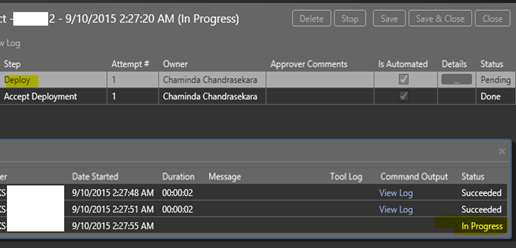

Release stopped and following message received.
Communication with the deployer was lost during the deployment. Please make sure (1) the deployer machine has not rebooted during installation and (2) the component timeout is sufficient to copy the files from the drop location to the deployer machine and install the package.

Worst is when the next release is triggered the first action is staying in pending state for ever. It not proceeding not failing.
How to resolve?
Go to the target machine and restart the deployment agent. Release actions comes alive.

The above error “Communication with the deployer was lost during the deployment.” can occur in few other situations. Few helpful links below.
http://blogs.blackmarble.co.uk/blogs/rfennell/post/2014/05/01/Release-Management-components-fail-to-deploy-with-a-timeout-if-a-variable-is-changed-from-standard-to-encrypted.aspx
http://blogs.blackmarble.co.uk/blogs/rfennell/post/2014/09/18/Communication-with-the-deployer-was-lost-during-deployment-error-with-Release-Management.aspx
https://social.msdn.microsoft.com/Forums/expression/en-US/c633f125-b323-4d1c-8206-a14e6250e0c3/release-management-deploying-components-failing-since-update-2?forum=tfsbuild


Release stopped and following message received.
Communication with the deployer was lost during the deployment. Please make sure (1) the deployer machine has not rebooted during installation and (2) the component timeout is sufficient to copy the files from the drop location to the deployer machine and install the package.

Worst is when the next release is triggered the first action is staying in pending state for ever. It not proceeding not failing.
How to resolve?
Go to the target machine and restart the deployment agent. Release actions comes alive.

The above error “Communication with the deployer was lost during the deployment.” can occur in few other situations. Few helpful links below.
http://blogs.blackmarble.co.uk/blogs/rfennell/post/2014/05/01/Release-Management-components-fail-to-deploy-with-a-timeout-if-a-variable-is-changed-from-standard-to-encrypted.aspx
http://blogs.blackmarble.co.uk/blogs/rfennell/post/2014/09/18/Communication-with-the-deployer-was-lost-during-deployment-error-with-Release-Management.aspx
https://social.msdn.microsoft.com/Forums/expression/en-US/c633f125-b323-4d1c-8206-a14e6250e0c3/release-management-deploying-components-failing-since-update-2?forum=tfsbuild
Thursday, 3 September 2015
Change RM Deployment Agent Temp Download Path – Resolve “The specified path, file name, or both are too long”
In an agent based release template, when the build output is downloaded to with a components using XCopy tool, the error below might be encountered, if there is web sites or projects, containing a lot of folder hierarchy and long file/folder names.
The specified path, file name, or both are too long. The fully qualified file name must be less than 260 characters, and the directory name must be less than 248 characters.

Shortening the Installation Path, not helped to resolve the problem. Manually downloading build output to this path, did not have file name paths exceeding the limit.

The issue occurred since deployment agent initially downloads build output to a temporary location. The default path is below.
C:\Users\<UserNameForDeploymenyAgent>\AppData\Local\Temp\ReleaseManagement\<ComponentName>\<VersionNumber>

To change this path there is no special configuration found anywhere in the Deployment Agent installation folder. None of the config files contain information on this path.

How to Resolve
This download path can be changed by, changing the Release Management Deployment Agent Service, running users Temp folder locations in environment variables.


Change it to a shorter path.

Restart the “Microsoft Deployment Agent” service. Now the deployment agent successfully downloads the files without path limit exceeding error, using the new Temp path.

Build output is getting downloaded to installation path defined.

The specified path, file name, or both are too long. The fully qualified file name must be less than 260 characters, and the directory name must be less than 248 characters.

Shortening the Installation Path, not helped to resolve the problem. Manually downloading build output to this path, did not have file name paths exceeding the limit.

The issue occurred since deployment agent initially downloads build output to a temporary location. The default path is below.
C:\Users\<UserNameForDeploymenyAgent>\AppData\Local\Temp\ReleaseManagement\<ComponentName>\<VersionNumber>

To change this path there is no special configuration found anywhere in the Deployment Agent installation folder. None of the config files contain information on this path.

How to Resolve
This download path can be changed by, changing the Release Management Deployment Agent Service, running users Temp folder locations in environment variables.


Change it to a shorter path.

Restart the “Microsoft Deployment Agent” service. Now the deployment agent successfully downloads the files without path limit exceeding error, using the new Temp path.

Build output is getting downloaded to installation path defined.

Sunday, 6 July 2014
Visual Studio Release Management
Do we need to manage software releases/deployments in a well planned methodology? Do we need to track the details of the releases/deployments? Do we need to have a proper rollback strategy if something goes wrong in a deployment to production? I could keep asking more and more questions like this related to the software release management, and always the answer would be “YES”.
So what are our options, in terms of Microsoft ALM set of tools. TFS Lab environments can be used, but can we use it for production releases automation? Yes, if the client is willing to provide trusted access to production environment, via TFS Lab environments. But in most cases client would not like this. To add more pain to this Lab environments deployments would over utilize the build servers, with long running deployments. The solution for all this pain is addressed well in, new Visual Studio 2013 Release Management.
First we need to understand “Why” we need to manage releases. This post in NorthWest Cadence provides great insight.
There are three major components in VS 2013 Release Management.
1. Release Management Server.
Set of windows and web services that act as the core part of the release management. There is a portal providing approval capability to the release check points, without having to install Release Management Client or Visual Studio.
2. Release Management Client.
Windows Presentation Foundation (WPF) application provide the interface to manage the releases and configurations of release management.
3. Deployment Agent
Resides in target servers in the environment and performs the deployment actions such as installing, uninstalling, configuration etc. of software components.
Each of above performs its own duty, and resides in different computers. Together they make deployment automation a possibility with all the visibility and traceability expected in proper Application Lifecycle Management process.
The following diagram extracted from VS 2013 Release Management Installation Guide provides overview of “How it works”.

Even though above picture shows TFS, it is not mandatory to have TFS for VS Release Management to work. If the TFS is available can be tightly integrated with it. If not it could obtain payload for the deployment from any accessible drop locations (UNC path). This means the deployment could be even something not developed with .Net .
Below diagram from VS 2013 Release Management Installation Guide explains communication between components of release management.

The most important thing here is the Deployment Agent is downloading the components for deployment as a pull request. Nothing is pushed from Release Management Server to Deployment Agent. This enables the possibility of Release Management Server not requiring access to Production environments. Deployment Agent notify Release Management Server it’s availability via heartbeat.
Let’s start our journey to explore Visual Studio Release Management by setting up an environment step by step, with my series of blog posts in next few weeks.
1. Setup Release Management Server.
2. Setup Release Management Client.
3. Setup Deployment Agent.
4. Configure SMTP.
5. Configure TFS Connection
6. Setup Stage Types.
7. Setup Servers & Environments.
8. Setup Release Path.
9. Demo Release Template - Part 1.
10. Demo Release Template - Part 2.
So what are our options, in terms of Microsoft ALM set of tools. TFS Lab environments can be used, but can we use it for production releases automation? Yes, if the client is willing to provide trusted access to production environment, via TFS Lab environments. But in most cases client would not like this. To add more pain to this Lab environments deployments would over utilize the build servers, with long running deployments. The solution for all this pain is addressed well in, new Visual Studio 2013 Release Management.
First we need to understand “Why” we need to manage releases. This post in NorthWest Cadence provides great insight.
There are three major components in VS 2013 Release Management.
1. Release Management Server.
Set of windows and web services that act as the core part of the release management. There is a portal providing approval capability to the release check points, without having to install Release Management Client or Visual Studio.
2. Release Management Client.
Windows Presentation Foundation (WPF) application provide the interface to manage the releases and configurations of release management.
3. Deployment Agent
Resides in target servers in the environment and performs the deployment actions such as installing, uninstalling, configuration etc. of software components.
Each of above performs its own duty, and resides in different computers. Together they make deployment automation a possibility with all the visibility and traceability expected in proper Application Lifecycle Management process.
The following diagram extracted from VS 2013 Release Management Installation Guide provides overview of “How it works”.

Even though above picture shows TFS, it is not mandatory to have TFS for VS Release Management to work. If the TFS is available can be tightly integrated with it. If not it could obtain payload for the deployment from any accessible drop locations (UNC path). This means the deployment could be even something not developed with .Net .
Below diagram from VS 2013 Release Management Installation Guide explains communication between components of release management.

The most important thing here is the Deployment Agent is downloading the components for deployment as a pull request. Nothing is pushed from Release Management Server to Deployment Agent. This enables the possibility of Release Management Server not requiring access to Production environments. Deployment Agent notify Release Management Server it’s availability via heartbeat.
Let’s start our journey to explore Visual Studio Release Management by setting up an environment step by step, with my series of blog posts in next few weeks.
1. Setup Release Management Server.
2. Setup Release Management Client.
3. Setup Deployment Agent.
4. Configure SMTP.
5. Configure TFS Connection
6. Setup Stage Types.
7. Setup Servers & Environments.
8. Setup Release Path.
9. Demo Release Template - Part 1.
10. Demo Release Template - Part 2.
Subscribe to:
Posts (Atom)
Popular Posts
-
 The hosts file in /etc/hosts is allowing the WSL distros to map IP addresses to domain names before going to domain name servers, similar...
 -
 Can a Coded UI test executed with a Console Application? Yes it is possible. I am going to explain how it can be done. I am going to exec...
 -
Pull Request are the controlled way to bring in the changes to your stable branches in your Azure Git repos, or for that matter all Git prov...
-
The new Azure Managed Redis can be deployed with balanced compute and memory with high availability, and useful modules such as RedisJson a...
-
We have discueed, that we have to use an environment variable to handle input parameter default values, if we are using trigger for workflo...


