It is great if the latest updates to TFS can be applied as and when they are released. But for a large organization it might not be sometimes easy. There may be few version gaps when you try to upgrade your TFS. Let’s discuss a problem with SQL server, faced while upgrading from TFS 2015.2 to TFS 2018, and how can it be fixed without getting into deeper troubles. This upgrade was done after a pre production trial using a clone of the TFS 2015.2, and no issues faced during TFS2015.2 from to TFS 2018 in the trial steps, which were exactly followed in production, except for clone TFS 2015.2 of course. Still in a production scenario you might run into unexpected 
Showing posts with label sql 2012. Show all posts
Showing posts with label sql 2012. Show all posts
Monday, 25 December 2017
TFS 2015.2 to TFS 2018 Upgrade–Lesson Learnt

Sunday, 12 January 2014
04. Setup SharePoint Foundation 2013 for TFS - Setup Virtual Environment for TFS 2013 - Using Virtualbox
In this fourth step of Setup Virtual Environment for TFS 2013 - Using Virtualbox, I will explain how to setup SharePoint Foundation 2013 in the TFS server (I am going to setup SharePoint Foundation 2013 in the TFS box since I do not have hardware for many machines in my laptop).
But you have following choices to set up SharePoint for TFS (extract from TFS Installation Guide below) .
-
You can use Team Foundation Server standard or advanced configuration wizards
to install SharePoint Foundation 2013 on the same server as Team Foundation
Server. The Team Foundation Server extensions for SharePoint Products are
installed automatically during Team Foundation Server installation.
-
You can use Team Foundation Server extensions for SharePoint Products
configuration wizard to install SharePoint Foundation 2013 on a different server
from the one running Team Foundation Server.
-
You can use SharePoint Server. If you use the enterprise version of
SharePoint Server, you must configure it for dashboard compatibility (more on
dashboard requirements later).
- You can use a different version of SharePoint Foundation than the one that ships with TFS.
Even though it is possible to let TFS configuration wizard to install SharePoint Foundation 2013 automatically, I prefer to setup SharePoint Foundation and configure by my self.
01. First create TFS report reader domain account in the PDC, which we will be using as SharePoint service account (report reader account will be SharePoint service account if installed with TFS configuration wizard).
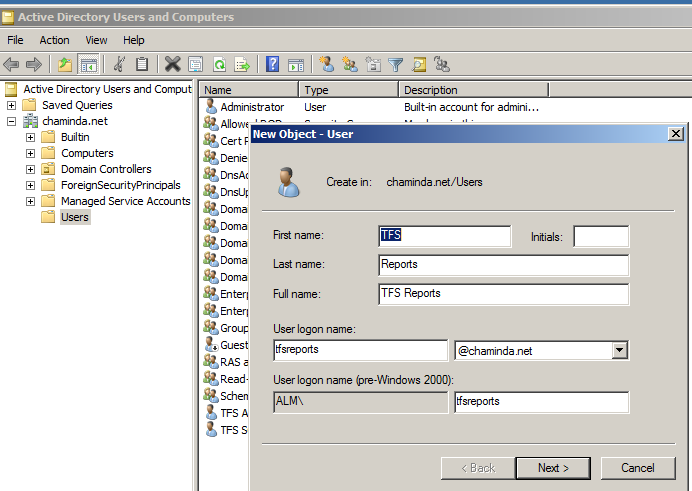
02. To fulfill the TFS report reader account requirement, grant it Allow Log on Locally in the TFS server VM. (Refer Accounts Required for TFS)


03. Download SharePoint Foundation 2013. Log on to TFS server with TFS administrator account and launch the SharePoint installation and install the prerequisites. For installing prerequisites in offline mode refer to here.


04. Once the prerequisites installation completed successfully restart the VM and Install SharePoint Foundation.


05. Once Installation done run the configuration wizard.


06. Select Create a new farm.


07. Specify a free port here.


08. Once configuration wizard Finish clicked it will launch SharePoint Central Administration website. Access with TFS Administrator account.

09. Start SharePoint farm configuration wizard.

10. Use the report reader as service account and deselect all other options and click next.


11. In Create site collection step provide below details


With above steps we have completed setting up SharePoint Foundation 2013 for TFS. Our next step will be installing and configuring TFS Server.
Monday, 6 January 2014
03. Setup SQL Server for TFS - Setup Virtual Environment for TFS 2013 - Using Virtualbox
This is the third step of Setup Virtual Environment for TFS 2013 - Using Virtualbox. In this step I will explain setup SQL Server instance with reporting services for Installing TFS Server 2013 - Single Server Deployment (since the limited RAM available for me I cannot set up many machines in my laptop ).
I have explained setting up a domain controller and VM for TFS in the isolated domain in previous two posts of this series.
Before installing SQL Server for TFS we need to setup a service account to run SQL server. Having a domain account as the SQL Server service account is not a requirement for TFS server. We can use a built in system account. But I prefer a domain account.
We are going to do below three main steps here.
a) Install SQL 2012
b) Install SQL 2012 SP1
c) Install Cumulative Update 2 for SQL 2012 SP1. (TFS Installation guide says "If you're using SQL Server 2012 with SP1, we recommend you also apply cumulative update 2 on
top of SP1 to address a critical SQL Server bug around resource consumption.")
Set up SQL 2012
01. Go to the PDC we have setup in the first step and add an account for SQL Server as shown below.

02. Next go to the VM for TFS and Web Server(IIS) role service.

Install ASP.Net role service as well.


03. Now shut down the TFS VM. To enable internet access to TFS VM (currently only isolated internal network enabled) add a second network adapter and setup it in NAT mode. For more information about different network options with virtual box refer here.

04. Start TFS VM and run SQL Server 2012 server setup (since we are going to setup Sharepoint Foundation 2013 in this machine we need to install SQL Server 2012 bit edition 64 or SQL Server 2008 R2 Service Pack 1 64 bit edition). Run system configuration checker.

05. Start setting up new instance.


06. We need only below features.


07. Set the SQL server service accounts as below.

08. Collation configuration

09. Add current user. In my case TFS Administrator domain account.


10. Set reporting services to install and configure.

11. Start installation

12. We are done with installation.

13. Reboot the TFS VM.
SQL Server SP1
01. Download SQL 2012 SP1(SQLServer2012SP1-KB2674319-x64-ENU.exe) and start installtion.


02. Reboot the TFS VM.
Cumulative Update 2 for SQL Server 2012 SP1
(SQLServer2012_SP1_CU2_2790947_11_0_3339_x64) get this file from the email link in MS support site.
01. Run the installation.


02. Reboot the TFS VM.
Now we have installed and configure SQL Server 2012 SP1 with reporting services ready for our TFS server. Next step is to set up SharePoint Foundation 2013.
Subscribe to:
Posts (Atom)